How to Turn Customer Purchase Orders from Email into Sales Orders
Why emailed purchase orders take so long to enter
Wholesale and trade customers order by email. Each purchase order arrives as a PDF or a table in the message, and someone has to read it, find the customer, look up every item, type each quantity, check the price and copy the PO number before the order even exists in the system.
Every retyped line is a chance to pick the wrong item or the wrong quantity, and a busy morning of orders pushes picking and delivery back. When the same PO is sent twice, it is easy to enter it twice.
Customers also use their own codes for your products. A buyer orders "AB-77" because that is what their system calls your 25 kg rice, and the person entering the order has to remember, every time, which of your items that is.
Why this happens
- Every PO line is retyped by hand.
- The customer's own part numbers are looked up from memory.
- Prices on the PO are trusted instead of your price list.
- The same PO is entered twice.
- The original PO is not kept with the order.
Biznsbook addresses this through the customer orders email address, draft sales orders at your own prices, customer part numbers learned once, duplicate PO detection in Sales, on the same sales orders, prices and stock reservation the rest of the system uses.
Order entry that is slow delays every step after it. Taking the customer, items, quantities and PO number from the email leaves only the check.
Step-by-step: Turn Customer Purchase Orders from Email into Sales Orders
Written for owners and order desks of wholesale, distribution and trade businesses using Biznsbook Sales and Inventory.
- Turn on the orders address. Open Management → Email addresses and turn on Customer orders. Copy the address shown there.
- Give it to customers or forward to it. Give the address to customers for their purchase orders, or have your Gmail forward their PO emails to it. The customer's email must be on their customer record.
- Let the draft be made. Each PO (a PDF or a table in the email) becomes a draft sales order for that customer at your prices: their customer price, price list or the item price. Their PO number is stored as the customer PO reference and the original file is attached.
- Read the remarks. Lines that did not match an item, and prices on their PO that differ from yours, are listed in the order's remarks. You get a notice for every order made.
- Set their part numbers once. A customer code that matched nothing waits on Customer part numbers (Party 360 → Part numbers, or the link in the notice). Pick your item once and their next order with that code matches it.
- Check and confirm the draft. Add any unmatched lines, check the quantities and confirm the order. Nothing is confirmed or reserved until you do, and the customer is not emailed automatically.
Review results after the first full daily cycle. Adjust roles, mappings, or approvals where the same exception repeats.
Screen-level flows live in the Help Center. This guide focuses on the business process; help articles cover click-by-click navigation.
Common mistakes to avoid
- Mistake 1: Every PO line is retyped by hand.
- Mistake 2: The customer's own part numbers are looked up from memory.
- Mistake 3: Prices on the PO are trusted instead of your price list.
- Mistake 4: The same PO is entered twice.
- Mistake 5: The original PO is not kept with the order.
Each of these turns into a late, wrong or doubled order. Make the draft from the PO, check it, and confirm it the same day.
Best practices that hold up as you scale
- Turn on the orders address — Open Management → Email addresses and turn on Customer orders.
- Give it to customers or forward to it — Give the address to customers for their purchase orders, or have your Gmail forward their PO emails to it.
- Let the draft be made — Each PO (a PDF or a table in the email) becomes a draft sales order for that customer at your prices: their customer price, price list or the item price.
- Read the remarks — Lines that did not match an item, and prices on their PO that differ from yours, are listed in the order's remarks.
- Set their part numbers once — A customer code that matched nothing waits on Customer part numbers (Party 360 → Part numbers, or the link in the notice).
Confirm each emailed order the morning it arrives, and set a customer's part numbers the first time they show as Waiting.
How Biznsbook supports this workflow
the customer orders email address is part of Biznsbook Sales and creates ordinary sales orders, so stock reservation, delivery notes, invoicing and payment work exactly as for an order typed by hand.
draft sales orders at your own prices is part of Biznsbook Sales and creates ordinary sales orders, so stock reservation, delivery notes, invoicing and payment work exactly as for an order typed by hand.
customer part numbers learned once is part of Biznsbook Sales and creates ordinary sales orders, so stock reservation, delivery notes, invoicing and payment work exactly as for an order typed by hand.
duplicate PO detection is part of Biznsbook Sales and creates ordinary sales orders, so stock reservation, delivery notes, invoicing and payment work exactly as for an order typed by hand.
Customer orders by email is part of Sales. Setting part numbers needs the Edit sales permission. Receiving by email needs the inbound address set up for your account.
Suggested implementation timeline
- Day 1: Turn on the customer orders email address and tell the people who will use it.
- Week 1: Confirm every emailed order from its draft, and set the part numbers each customer's orders show as Waiting.
- Week 2: Check the recent emails on Management → Email addresses and fix any sender who is not accepted.
- Month 2: Make email the normal way in for these requests, and add the next address.
- Ongoing: A morning routine for emailed orders.
How customer part numbers are learned
Every code read from a customer's purchase orders is remembered for that customer. A code that matched none of your items is listed as Waiting on their Customer part numbers page. Choose your item next to it once, and from then on every order from that customer with that code matches the item without anyone looking it up.
Codes that matched one of your items by barcode or name are listed too, marked Matched, so you can check that the match is right. A code you set by hand is never changed by a later order. You can also add a part number yourself before the customer's first order, and remove one that is no longer used.
Part numbers belong to one customer. The same code from another customer is matched separately, so two buyers can use the same code for different items without any mix-up.
What to check on each draft
Start with the remarks. They list the lines that did not match an item, with the quantity on the PO, and any line where the customer's price differs from yours. Add the missing lines, and decide whether a different price needs a conversation with the customer or a change to their price list.
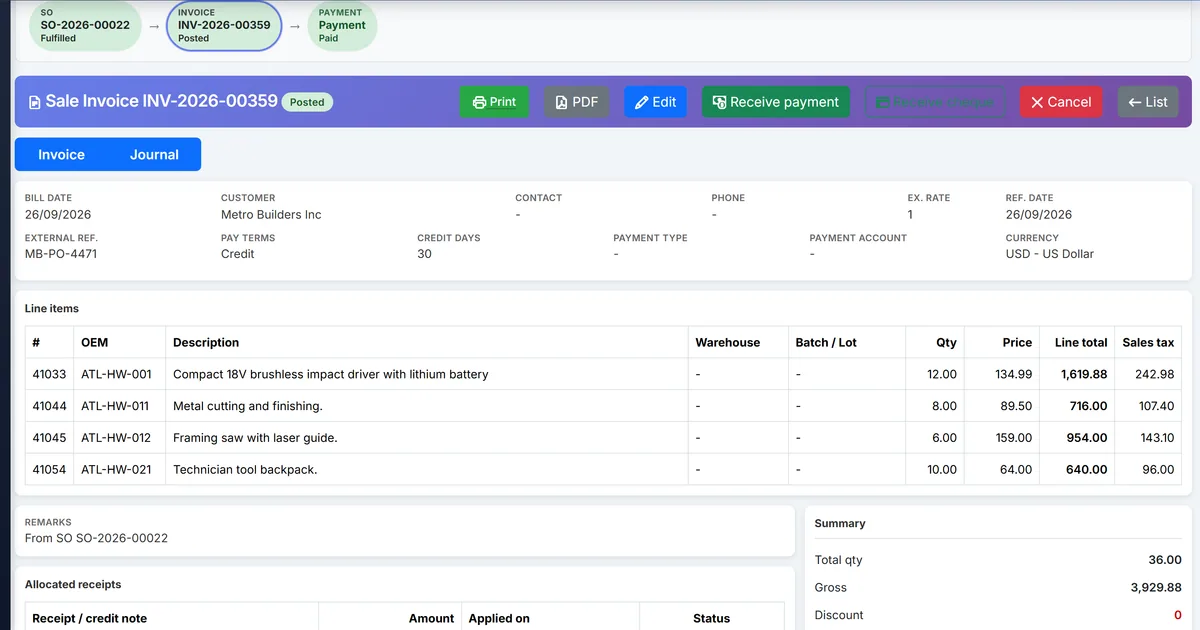
Then check the quantities and the delivery date, and confirm the order. Confirming is what reserves the stock and starts the normal order-to-cash flow: delivery notes, the invoice and the payment, exactly as for an order typed by hand.
The original PO stays attached to the order, so anyone who picks, delivers or invoices it later can open exactly what the customer sent.
Metrics to track monthly
- Emailed orders still in draft at the end of the day
- Lines added by hand per order
- Customer part numbers still waiting
- Orders confirmed the day they arrive
Typing orders vs orders by email
Compare typing every purchase order by hand with Biznsbook the customer orders email address and the related capabilities.
| Capability | Manual / Spreadsheet | Biznsbook |
|---|---|---|
| Entering the order | ❌ Every line retyped | ✅ A draft made from the PO |
| Prices | ❌ Copied from the PO | ✅ Your own prices, with differences noted |
| Customer part numbers | ❌ Looked up from memory | ✅ Set once, then matched first |
| PO number | ❌ Typed by hand | ✅ Stored as the customer PO reference |
| The same PO twice | ❌ Easy to enter twice | ✅ Not made again |
| The original file | ❌ Left in the inbox | ✅ Attached to the order |
A morning routine for emailed orders
Open the order notices first thing. For each draft, read the remarks, add the unmatched lines and confirm. When a customer's codes are listed as Waiting, set them before the next order arrives. Once a week, check the part numbers marked Matched for your biggest customers.
Write the order routine (who checks drafts, when, and who sets new part numbers) into your order-desk procedures.
Frequently asked questions
Which customers can send orders?
A customer whose email is on their customer record. The PO can be a PDF or a table in the email.
Does it confirm the order on its own?
No. It makes a draft sales order. You check it and confirm it, and the customer is not emailed automatically.
What prices are used?
Your prices: the customer's own price, their price list or the item price. A price on their PO that differs from yours is listed in the order's remarks.
What if a customer uses their own codes for my items?
Lines are matched by the customer's own part numbers first. A code that matched nothing waits on Customer part numbers, where you pick your item once; codes matched by barcode or name are listed too, marked Matched, so you can check them.
What happens if the same PO arrives twice?
The same PO number from the same customer is not made again.
Where do I see lines that did not match?
In the draft order's remarks, with the quantity read from the PO, so you can add them by hand.
How this differs by industry
Retail
Shops that also sell to trade customers turn their emailed orders into drafts and keep counter sales on the till.
Wholesale & distribution
Distributors take purchase orders from many buyers who each use their own codes, set those codes once per customer, and confirm the drafts in a few minutes.
Manufacturing
Producers receive their customers' POs as drafts with the PO number stored, ready to confirm and plan production against.