How to Print Warehouse Pick and Put-Away Lists
Transfers without paper still fail on the floor
Inter-warehouse moves often stall because pickers work from a screen they cannot take into the aisle, while receivers at the destination invent handwritten put-away notes that never match the ERP destination bin.
Distribution teams that already run Approve & Ship and Receive still lose accuracy when destination storage locations were never printed for the dock crew.
Retail DC-to-store transfers need a simple checklist, not a wave engine. Buying a full WMS for printable lists overcomplicates SMB operations that already live in Biznsbook Inventory and Warehouse.
Cold-chain put-away fails when refrigerated bins are not visible on the sheet the receiver carries, so ambient overflow becomes the informal default.
Why this happens
- Transfer UIs are desktop-first and hard to use on the floor.
- Destination bins are optional on create and often left blank until receive.
- Teams assume they need wave picking software for any printed pick document.
- Capacity is reviewed after put-away, when overloaded bins are already full.
Biznsbook keeps lists lightweight and transfer-based: pick list from the source warehouse, put-away list from destination storage locations and remaining quantities—aligned with Docs/Warehouse scope (no wave picking or carriers).
Step-by-step: Print Warehouse Pick and Put-Away Lists
- Create the stock transfer. Create a transfer with from and to warehouses, lines, quantities, and optional expected arrival.
- Assign destination bins. Set destination storage locations on lines or accept suggested put-away locations for the destination warehouse.
- Open transfer details. Save as Draft or submit for Approve & Ship, then open the transfer details page.
- Print the pick list. Choose Pick list to print source-warehouse lines sorted for picking with checkboxes.
- Approve and ship. Approve & Ship to deduct source stock and move the document to In Transit when ready.
- Print the put-away list. Choose Put-away list to print destination bins, shipped qty, received qty, and remaining.
- Receive against the list. Receive full or partial quantities; capacity checks warn or block overloaded destination bins.
Help Center articles cover screen navigation; this guide covers the floor workflow around printable transfer lists.
Common mistakes to avoid
- Printing put-away with no destination bins. Assign storage locations before print so labels appear on the sheet.
- Shipping before the pick list is used. Pick against Draft or immediately after Approve & Ship with a clear floor process.
- Ignoring capacity warnings on receive. Soft-warn or hard-block follows company picking enforcement when max capacity is set.
- Expecting wave or pack-station features. Those remain out of Warehouse scope; use Fast Dispatch and delivery notes for outbound sales picking.
How Biznsbook supports this workflow
Stock transfers provide Draft → In Transit → Received / Partially Received with Approve & Ship and Receive Transfer actions.
Printable pick and put-away lists open from transfer details for non-cancelled documents, sorted for source picking or destination bins.
Suggested put-away recommends destination storage locations by warehouse, item, and quantity when creating transfers.
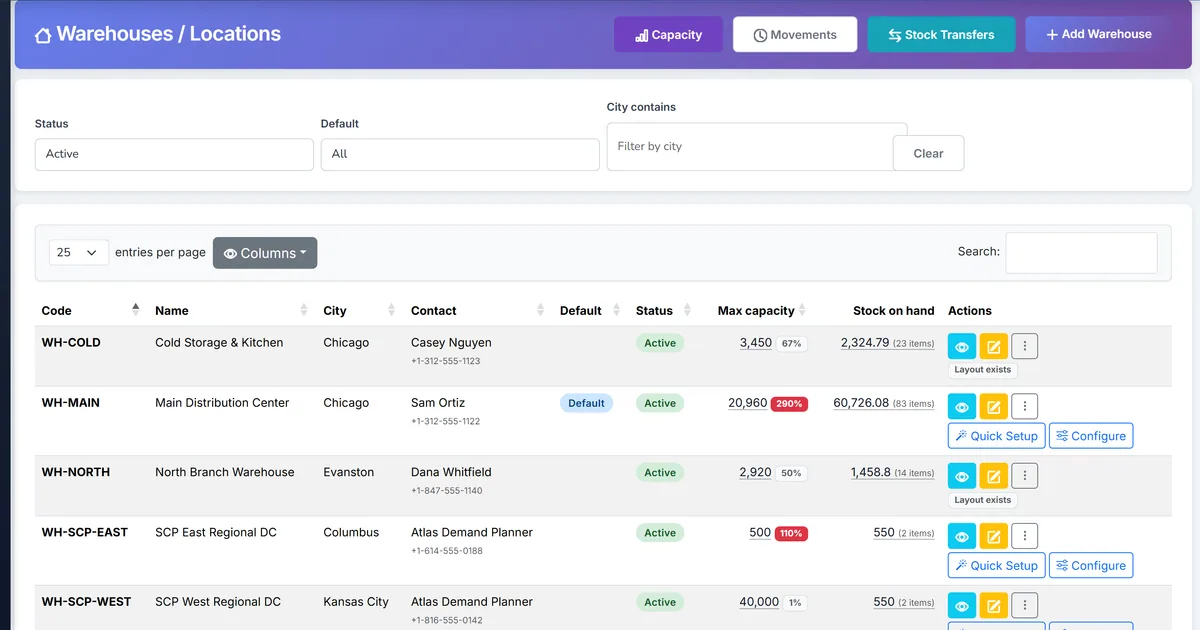
Capacity checks on receive respect configured max capacity and the company picking enforcement mode (soft warning or hard block).
Ad-hoc notes vs transfer printouts
| Capability | Manual notes | Biznsbook |
|---|---|---|
| Source pick sheet | ❌ Rewritten each move | ✅ Pick list from transfer |
| Destination bins | ⚠️ Memory / whiteboard | ✅ Put-away list with labels |
| Partial receive | ❌ Lost remaining qty | ✅ Remaining column on put-away |
| Capacity awareness | ❌ After overflow | ✅ Warn / block on receive |
| WMS complexity | ⚠️ Buy wave suite | ✅ Transfer-based lists only |
| Audit link | ❌ Detached paper | ✅ Same transfer document |
Frequently asked questions
Is this full WMS wave picking?
No. Biznsbook prints lightweight pick and put-away lists from a stock transfer. Wave picking, pack stations, carriers, and route optimization are out of Warehouse module scope.
When can I print the lists?
From transfer details for any non-cancelled transfer. Pick lists support Draft or In Transit work; put-away lists show destination bins and remaining quantities for receive.
How do destination bins get onto the put-away list?
Choose destination storage locations on transfer lines, or use suggested put-away locations when creating the transfer so receivers see aisle-shelf-bin labels.
What happens if a bin is over capacity on receive?
Biznsbook checks destination capacity on receive. Soft warning continues with a message; hard block follows the company picking enforcement setting when capacity is configured.
How this differs by industry
Retail
DC pickers print one pick list per store transfer; store receivers use put-away lists tied to backroom aisle-bin labels.
Wholesale & distribution
Hubs print put-away lists after Approve & Ship so night crews place inbound pallets into capacity-aware bins before morning order waves.
Manufacturing
Plants transfer raw materials between warehouses with destination bins near lines; put-away lists keep refrigerated and restricted locations explicit.