How to Analyze Booking No-Shows With AI
Why no-shows are hard to fix
A no-show costs a service business twice: the slot is lost and someone else could have booked it. Most businesses know roughly how often it happens, but not when, for which services or for which kinds of booking.
Working it out means exporting the booking history, marking each one as attended, cancelled or missed, and grouping by weekday and hour. Few front desks have time for that, so the same gaps repeat every week.
An analyst that reads the bookings directly can explain the no-show and cancellation rates, show the busiest and quietest times and point to bookings with unpaid deposits, so the business can adjust hours, deposits and reminders.
Why this happens
- No-shows are counted but not analysed.
- Quiet hours are staffed like busy ones.
- Deposits are not taken where they matter.
- Cancellations and no-shows are mixed together.
- Booking history is reviewed only when there is a problem.
Biznsbook addresses this through bookings analysis, Ask box on the Booking Today page, no-show and cancellation rates, busiest and quietest hours in AI Analyst, reading the same bookings as the Booking module.
None of this needs more data: the booking records are already in the system. What is missing is a quick, trustworthy way to ask about them and see the rows behind each answer.
Step-by-step: Analyze Booking No-Shows With AI
Written for owners and front-desk managers of booking-based businesses using Biznsbook AI Analyst with Booking.
- Check the module and role. You need Booking, the AI Analyst User role and access to the Booking data. Booking runs on its own, and AI Analyst needs no other module.
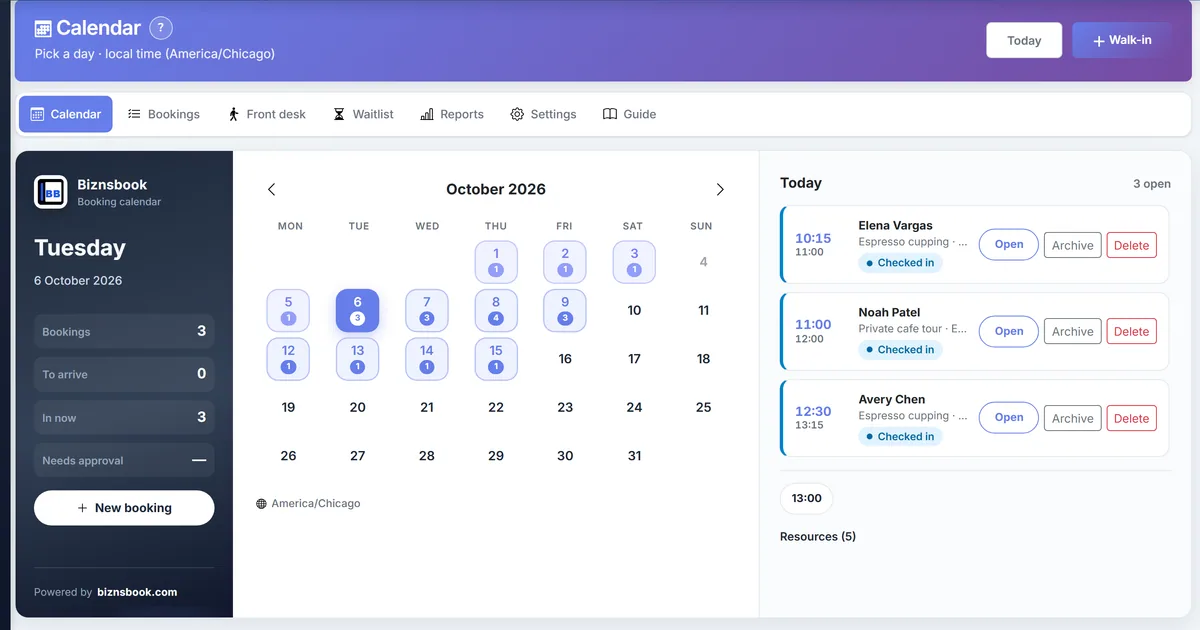
- Ask from the Booking Today page. The Booking Today page has an Ask the AI Analyst box. Click an example question or write your own, then click Ask.
- Read the no-show and cancellation rates. The answer explains the no-show rate and the cancellation rate separately, so you can tell missed bookings from cancelled ones.
- Read the busiest and quietest times. The busiest and quietest weekdays and hours show where demand is and where slots go empty.
- Read the unpaid deposits. Bookings with unpaid deposits are listed, each linked to its row in The data it used.
- Ask a follow-up. Ask, for example, "Are no-shows higher on bookings without a deposit?" in the same conversation.
- Act and ask again. Adjust deposits, opening hours or staffing for the quiet times, then ask the same question a month later to compare.
Review results after the first full monthly cycle. Adjust roles, mappings, or approvals where the same exception repeats.
Setup and screen steps are in the AI Analyst guide inside Biznsbook. This page focuses on the business question; the AI Analyst page summarises the add-on.
Common mistakes to avoid
- Mistake 1: No-shows are counted but not analysed. Repeating this each month usually shows up first in empty slots and lost bookings.
- Mistake 2: Quiet hours are staffed like busy ones. Repeating this each month usually shows up first in empty slots and lost bookings.
- Mistake 3: Deposits are not taken where they matter. Repeating this each month usually shows up first in empty slots and lost bookings.
- Mistake 4: Cancellations and no-shows are mixed together. Repeating this each month usually shows up first in empty slots and lost bookings.
- Mistake 5: Booking history is reviewed only when there is a problem. Repeating this each month usually shows up first in empty slots and lost bookings.
Each of these leaves the front desk acting on numbers nobody checked. Ask about the data where it lives, and read the source rows before acting on a figure.
Best practices that hold up as you scale
- Check the module and role — You need Booking, the AI Analyst User role and access to the Booking data.
- Ask from the Booking Today page — The Booking Today page has an Ask the AI Analyst box.
- Read the no-show and cancellation rates — The answer explains the no-show rate and the cancellation rate separately, so you can tell missed bookings from cancelled ones.
- Read the busiest and quietest times — The busiest and quietest weekdays and hours show where demand is and where slots go empty.
- Read the unpaid deposits — Bookings with unpaid deposits are listed, each linked to its row in The data it used.
Separate no-shows from cancellations, target deposits where no-shows cluster, and compare month to month.
How Biznsbook supports this workflow
bookings analysis is part of Biznsbook AI Analyst and reads the same booking records the rest of Biznsbook uses, under the asking person's rights, with every figure checked against the data before the answer is shown.
Ask box on the Booking Today page is part of Biznsbook AI Analyst and reads the same booking records the rest of Biznsbook uses, under the asking person's rights, with every figure checked against the data before the answer is shown.
no-show and cancellation rates is part of Biznsbook AI Analyst and reads the same booking records the rest of Biznsbook uses, under the asking person's rights, with every figure checked against the data before the answer is shown.
busiest and quietest hours is part of Biznsbook AI Analyst and reads the same booking records the rest of Biznsbook uses, under the asking person's rights, with every figure checked against the data before the answer is shown.
AI Analyst is an add-on ($10 per company per month) and needs no other module; each analysis area needs its module, scheduled analysis also needs Business Automation, and your company pays its own AI provider for tokens.
Suggested implementation timeline
- Day 1: Add an approved AI model and API key in AI Analyst → Settings, tick the kinds of data allowed and turn analysis on.
- Week 1: Give the AI Analyst User role to two or three people and try bookings analysis on real questions.
- Week 2: Open The data it used on each answer and check the figures you plan to act on.
- Month 1: Save the questions people repeat as briefs, and schedule the weekly ones if you use Business Automation.
- Ongoing: A monthly bookings review.
From no-show rate to a deposit and hours policy
A single no-show rate hides the pattern. Ask the analyst when no-shows happen and for which offerings, and compare that with the busiest and quietest hours. Missed bookings in busy hours cost the most, because another guest could have taken the slot.
Deposits are the usual answer to no-shows, but asking for one on every booking can put guests off. Use the analysis to target them: the offerings, weekdays or hours where no-shows cluster. The unpaid deposits list then shows where a deposit was asked for but not yet paid.
Quiet hours are a separate decision. If the same weekday hours are quiet month after month, consider shorter hours, fewer staff on the roster or an offer for that time, then ask again to see whether bookings moved.
What the analyst can and cannot see in your bookings
The analyst reads the bookings the asking person may see in Biznsbook. Counts, statuses and times are operational data, so a front-desk manager with access to Booking gets the rates and the busy and quiet times without any extra right.
Guest details are treated more carefully. Customer names fall under the Customers data class, and names, phones and emails of people fall under Personal data, which needs its own right. Without it, the answer still explains the pattern but leaves out who the guests were.
If part of the question needs data the person cannot see, the answer lists it under What the analyst could not see. That keeps the explanation honest: you know when a figure is missing because of a right rather than because the data does not exist.
Metrics to track monthly
- No-show rate
- Cancellation rate
- Quietest weekday hours
- Bookings with unpaid deposits
Start with three metrics; trend direction matters more than a single point-in-time snapshot.
Manual analysis vs Biznsbook AI Analyst
Compare common manual analysis with Biznsbook bookings analysis and the related AI Analyst capabilities.
| Capability | Manual / Spreadsheet | Biznsbook |
|---|---|---|
| No-show rate | ❌ Rough guess | ✅ Explained from your own bookings |
| Cancellations | ❌ Mixed with no-shows | ✅ Shown as a separate rate |
| Busy and quiet times | ❌ Felt at the front desk | ✅ Busiest and quietest weekdays and hours |
| Unpaid deposits | ❌ Found at check-in | ✅ Listed in the answer |
| Checking the figures | ❌ Recount the diary | ✅ Each figure linked to its source row |
| Repeat review | ❌ Rarely done | ✅ Saved as a brief or scheduled |
A monthly bookings review
Once a month, ask about no-shows, cancellations and quiet hours, and write down one change to try, such as a deposit on one offering or shorter hours on one weekday. Ask the same question next month and keep the change only if the figures moved.
Write each change you try, and the month you will check it, next to the booking settings.
Frequently asked questions
What booking figures does the analyst explain?
No-show and cancellation rates, the busiest and quietest weekdays and hours, and unpaid deposits.
Does it need another module besides Booking?
No. AI Analyst needs no other module, and each analysis area needs its own module, here Booking. Scheduled analysis also needs Business Automation.
Where is the Ask box?
On the Booking Today page. You see it when you have the AI Analyst User role and may see Booking.
Will it cancel bookings or charge deposits?
No. The analyst reads and explains; it never changes your data.
Can it include customer names?
Customer names fall under the Customers data class, and names, phones and emails of people under Personal data, which needs its own right. Without the right, those details are left out.
How much does it cost?
AI Analyst is an add-on at $10 per company per month, and your company pays its AI provider for tokens, usually a few cents per analysis.
How this differs by industry
Retail
Shops that book fittings or repairs see which weekday hours are quiet and move staff to the busy Saturday slots.
Wholesale & distribution
Showrooms that book trade appointments see which appointment types are missed most and ask for confirmation first.
Manufacturing
Factories that book visits, training or equipment hire see cancellation patterns and unpaid deposits before the day.