How to Log Production on a Shop-Floor Terminal
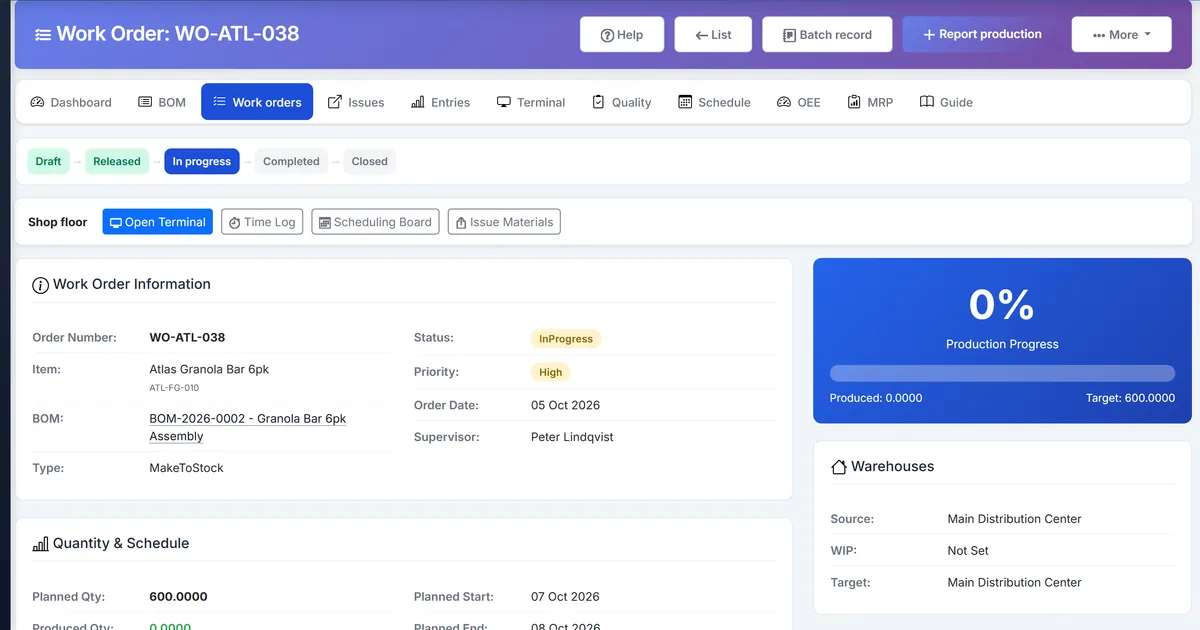
Back-office production forms slow operators at the machine
Operators standing at a machine cannot walk to an office PC every time they finish a batch, so good and scrap quantities are written on paper and typed later — often wrong or incomplete.
When shop-floor capture is disconnected from inventory posting, finished goods appear late and scrap never hits yield reports.
Supervisors lose live visibility because running totals exist only on clipboards until someone posts a production entry at shift end.
Why this happens
- Production entry is designed as a back-office form, not a touch-friendly terminal.
- Scrap and reject are recorded verbally instead of as discrete events.
- Sessions are not tied to a single work order and workstation.
- A second posting path would risk double-counting stock.
Biznsbook addresses this through shop-floor production terminal, good reject rework scrap capture, production entry posting when Manufacturing and Inventory are enabled; Accounting adds WIP and cost postings when your chart and system accounts are configured.
Finance teams lose days each month reconciling versions that should never have diverged. Naming Biznsbook screens as the system of record — and closing periods when agreed — prevents silent edits that auditors flag immediately.
Step-by-step: Log Production on a Shop-Floor Terminal
Built for production planners, shop-floor supervisors, and operations managers running BOM-driven work orders with MES-lite capture, OEE, and inventory integration.
- Release and start the work order. Ensure the work order is In Progress and materials are issued so the terminal has a valid job to capture against.
- Open Shop Floor Terminal. From Manufacturing → Shop Floor Terminal, scan a work order number or finished-item barcode and press Enter, or tap a card. One match selects that order. Exactly one open session resumes it. Several matches stay on the list. A workstation is optional. When your login is linked to an employee, Your queue lists your sessions and assigned work orders, and Start records that employee.
- Log output events. Use large Good, Reject, Rework, and Scrap buttons, or scan the same work order or barcode to log Good at the quantity per tap. Any other code does not log. Running totals update on the session screen.
- Capture batch numbers when required. Enter batch or lot on lines for batch-tracked finished goods so genealogy and stock lots stay aligned.
- Complete the session. Complete rolls lines into one Production Entry and runs the existing complete path — the same stock and WIP posting as Create Entry. The terminal does not post stock itself and does not keep an offline queue. Completing the same session again does not post twice.
- Abandon only when needed. Abandon open sessions that should not post; abandoned sessions never create inventory movements.
- Verify stock and entry. Open the resulting production entry and stock card to confirm finished-goods increase matches good quantity.
Review results after the first full weekly cycle. Adjust roles, mappings, or approvals where the same exception repeats.
Screen-level flows live in the Help Center. This guide focuses on the business process; help articles cover click-by-click navigation.
Common mistakes to avoid
- Mistake 1: Production entry is designed as a back-office form, not a touch-friendly terminal. Repeating this each month usually shows up first in OEE dashboard or stock card variance reports.
- Mistake 2: Scrap and reject are recorded verbally instead of as discrete events. Repeating this each month usually shows up first in OEE dashboard or stock card variance reports.
- Mistake 3: Sessions are not tied to a single work order and workstation. Repeating this each month usually shows up first in OEE dashboard or stock card variance reports.
- Mistake 4: A second posting path would risk double-counting stock. Repeating this each month usually shows up first in OEE dashboard or stock card variance reports.
Track recurring exceptions in month-end notes; each should map to a control above.
Best practices that hold up as you scale
- Release and start the work order — Ensure the work order is In Progress and materials are issued so the terminal has a valid job to capture against.
- Open Shop Floor Terminal — From Manufacturing → Shop Floor Terminal, scan a work order number or finished-item barcode and press Enter, or tap a card.
- Log output events — Use large Good, Reject, Rework, and Scrap buttons, or scan the same work order or barcode to log Good at the quantity per tap.
- Capture batch numbers when required — Enter batch or lot on lines for batch-tracked finished goods so genealogy and stock lots stay aligned.
- Complete the session — Complete rolls lines into one Production Entry and runs the existing complete path — the same stock and WIP posting as Create Entry.
Teams that capture output on the shop-floor terminal, clock operations, and review OEE daily keep planned schedules and MRP-lite nets grounded in real production.
How Biznsbook supports this workflow
shop-floor production terminal is documented in Biznsbook Manufacturing capabilities. Use it as part of a controlled finance process — posting, review, and period close — not as an isolated export. When Sales, Purchase, Inventory, Taxation, Expense, or Finance Management modules are enabled, related documents can post through the central accounting posting service with double-entry validation.
good reject rework scrap capture is documented in Biznsbook Manufacturing capabilities. Use it as part of a controlled finance process — posting, review, and period close — not as an isolated export. When Sales, Purchase, Inventory, Taxation, Expense, or Finance Management modules are enabled, related documents can post through the central accounting posting service with double-entry validation.
production entry posting is documented in Biznsbook Manufacturing capabilities. Use it as part of a controlled finance process — posting, review, and period close — not as an isolated export. When Sales, Purchase, Inventory, Taxation, Expense, or Finance Management modules are enabled, related documents can post through the central accounting posting service with double-entry validation.
Manufacturing permissions separate BOM maintenance, work order release, production entry, quality inspection, reports, and scheduling. Inventory is required for items, warehouses, and stock mutations.
Suggested implementation timeline
- Week 1: Document current process gaps and configure shop-floor production terminal with finance owner sign-off.
- Weeks 2–3: Pilot on one month or one entity; post all test transactions through Biznsbook; freeze parallel spreadsheet journals.
- Week 4: Run first trial balance or report tie-out; fix mapping and permission issues.
- Month 2–3: Roll out to full team; add approvals and period close cadence from this guide.
- Ongoing: Monthly review using terminal sop and leadership dashboard.
Metrics to track monthly
- Shop-floor terminal sessions completed same shift
- Operation time logs vs BOM standard variance
- OEE by workstation (availability, performance, quality)
- Scheduling board load % over 100%
- MRP-lite shortages firmed to a work order, requisition, or transfer
- Genealogy where-used / where-from recall drills
Start with three metrics; trend direction matters more than a single point-in-time snapshot.
Spreadsheet / manual books vs integrated ERP
Compare typical manual finance work with Biznsbook shop-floor production terminal and related capabilities.
| Capability | Manual / Spreadsheet | Biznsbook |
|---|---|---|
| Capture UX | ❌ Office form after shift | ✅ Touch terminal at the station |
| Event types | ❌ One total quantity | ✅ Good, reject, rework, scrap |
| Posting path | ❌ Risk of duplicate logic | ✅ Same CompleteProductionEntry path |
| Live totals | ❌ Clipboard only | ✅ Session running summary |
| Work order link | ❌ Typed later | ✅ Session bound to WO |
| Fallback | ❌ No alternative | ✅ Classic production entry still works |
Terminal SOP
Open one session per work order run, complete before shift end, and never leave Open sessions overnight unless intentionally paused for a multi-shift job with supervisor ownership.
Document this in your finance SOP and revisit each quarter as transaction volume or entity structure changes.
Frequently asked questions
Does the terminal create a new stock pipeline?
No. Completing a session creates and completes a Production Entry through the existing service so inventory and accounting behave exactly like back-office entry.
Who can use the shop-floor terminal?
Users with Manufacturing production entry access — the terminal reuses the same permission as classic production posting.
Can I still use the back-office production entry form?
Yes. The terminal is additive; classic Create Entry and Edit Entry remain fully available as the fallback.
What happens if I abandon a session?
Abandoned sessions close without posting a Production Entry, so no finished-goods stock is created from that session.
Does the terminal keep an offline queue?
No. The terminal is a responsive web page. A scan selects a work order or logs Good only while the page can reach Biznsbook. There is no local buffer to sync later.
When does time-log labor post?
Apply time-log labor on completion is off by default. When it is on, completing a production entry adds unapplied operation minutes at the workstation hourly rate to that entry and posts them on the existing labor journal. A later entry adds only new minutes. A missing Direct Labor or WIP account still completes stock and shows a warning.
How this differs by industry
Retail
Light assembly and kitting teams can log completed kits at a packing station without leaving the floor to find a planner PC.
Wholesale & distribution
Distribution centers running light manufacture or rework can capture good and scrap against released work orders at the packing line.
Manufacturing
Discrete factories gain sub-second event capture at the workstation while keeping one inventory posting path for auditors and finance.