How to Review FIFO Cost Layers
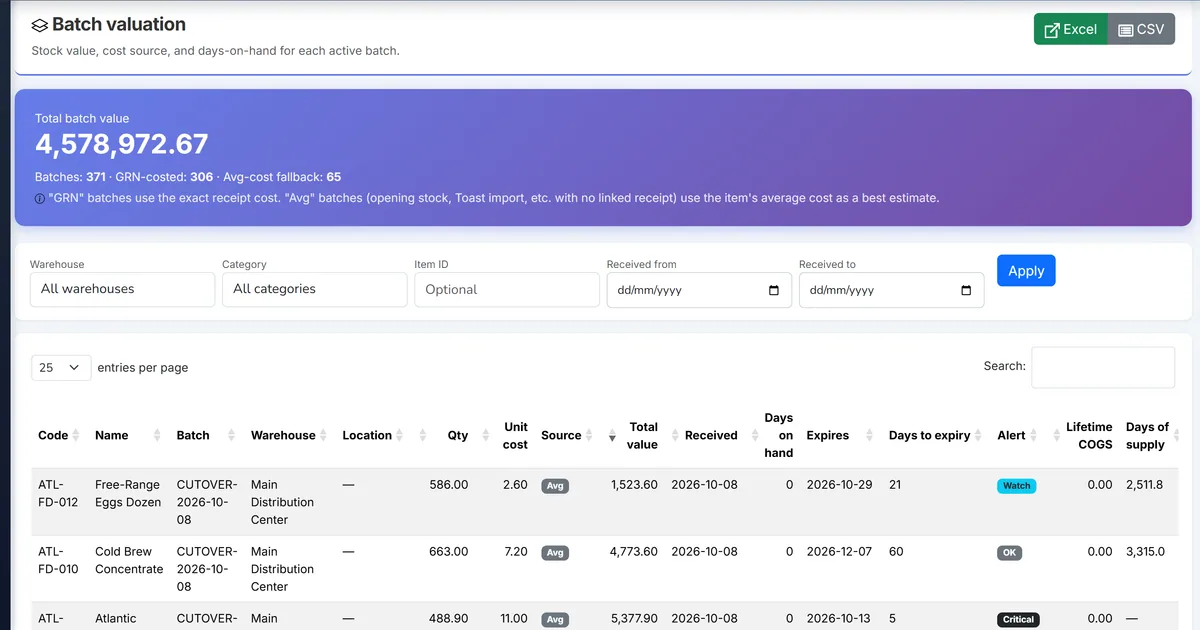
Auditors ask which receipt lot is still on hand
FIFO costing only helps when finance can see unconsumed layers — not just a single average on the item master.
Without a layer report, controllers rebuild receipt history in spreadsheets before inventory counts or external audit.
Multi-warehouse FIFO needs per-location layer visibility, not company-wide averages.
Why this happens
- Teams enable FIFO costing but never open the layer report after go-live.
- Old layers with remaining quantity are not reviewed for obsolescence.
- Warehouse transfers are not reconciled to layer balances.
- Export for audit is manual copy-paste from trial balance support sheets.
Biznsbook addresses this through FIFO cost layer report, layer age and remaining qty, Excel export when Inventory and Finance modules are licensed — GRN receipts, sales, and valuation reports share one stock ledger with method-aware unit costs.
Finance teams lose days each month reconciling versions that should never have diverged. Naming Biznsbook screens as the system of record — and closing periods when agreed — prevents silent edits that auditors flag immediately.
Step-by-step: Review FIFO Cost Layers
Built for finance controllers and inventory leads managing per-item FIFO, standard cost, and weighted average policy in Biznsbook.
- Open the item FIFO report. From item Edit (Costing section) or Details, click View FIFO cost layers, or navigate to /inventory/cost-layers/{itemId}.
- Filter by warehouse. When stock spans locations, filter the report to one warehouse to match cycle-count scope.
- Sort by age. Layers display oldest receipt first — investigate lots with high age and remaining quantity for write-down or promotion.
- Compare to on-hand quantity. Sum remaining layer quantity and confirm it aligns with warehouse on-hand for the FIFO item.
- Trace source documents. Use Source type and ID (typically GRN) to drill into the original receipt cost.
- Export for audit. Download Excel from the report toolbar for month-end working papers or external auditor requests.
- Tie to valuation total. Layer value total should match the FIFO line on the inventory valuation report for the same item and warehouse filter.
Review results after the first full monthly cycle. Adjust roles, mappings, or approvals where the same exception repeats.
Screen-level flows live in the Help Center. This guide focuses on the business process; help articles cover click-by-click navigation.
Common mistakes to avoid
- Mistake 1: Teams enable FIFO costing but never open the layer report after go-live. Repeating this each month usually shows up first in inventory valuation and margin reports.
- Mistake 2: Old layers with remaining quantity are not reviewed for obsolescence. Repeating this each month usually shows up first in inventory valuation and margin reports.
- Mistake 3: Warehouse transfers are not reconciled to layer balances. Repeating this each month usually shows up first in inventory valuation and margin reports.
- Mistake 4: Export for audit is manual copy-paste from trial balance support sheets. Repeating this each month usually shows up first in inventory valuation and margin reports.
Track recurring exceptions in month-end notes; each should map to a control above.
Best practices that hold up as you scale
- Open the item FIFO report — From item Edit (Costing section) or Details, click View FIFO cost layers, or navigate to /inventory/cost-layers/{itemId}.
- Filter by warehouse — When stock spans locations, filter the report to one warehouse to match cycle-count scope.
- Sort by age — Layers display oldest receipt first — investigate lots with high age and remaining quantity for write-down or promotion.
- Compare to on-hand quantity — Sum remaining layer quantity and confirm it aligns with warehouse on-hand for the FIFO item.
- Trace source documents — Use Source type and ID (typically GRN) to drill into the original receipt cost.
Teams that set costing method on new SKUs before the first GRN avoid locked-method migrations and keep month-end valuation tie-outs straightforward.
How Biznsbook supports this workflow
FIFO cost layer report is documented in Biznsbook Inventory & Finance capabilities. Use it as part of a controlled finance process — posting, review, and period close — not as an isolated export. When Sales, Purchase, Inventory, Taxation, Expense, or Finance Management modules are enabled, related documents can post through the central accounting posting service with double-entry validation.
layer age and remaining qty is documented in Biznsbook Inventory & Finance capabilities. Use it as part of a controlled finance process — posting, review, and period close — not as an isolated export. When Sales, Purchase, Inventory, Taxation, Expense, or Finance Management modules are enabled, related documents can post through the central accounting posting service with double-entry validation.
Excel export is documented in Biznsbook Inventory & Finance capabilities. Use it as part of a controlled finance process — posting, review, and period close — not as an isolated export. When Sales, Purchase, Inventory, Taxation, Expense, or Finance Management modules are enabled, related documents can post through the central accounting posting service with double-entry validation.
Item master, GRN posting, and inventory reports are role-separated so operations receives stock while finance owns costing policy and variance review.
Suggested implementation timeline
- Week 1: Document current process gaps and configure FIFO cost layer report with finance owner sign-off.
- Weeks 2–3: Pilot on one month or one entity; post all test transactions through Biznsbook; freeze parallel spreadsheet journals.
- Week 4: Run first trial balance or report tie-out; fix mapping and permission issues.
- Month 2–3: Roll out to full team; add approvals and period close cadence from this guide.
- Ongoing: Monthly review using layer review cadence and leadership dashboard.
Metrics to track monthly
- FIFO items with active cost layers reviewed monthly
- Standard cost variance posted within the receipt period
- Valuation report FIFO layer total matches layer report
- Items with costing method set before first transaction
- Margin report COGS using ledger unit cost not manual average
Start with three metrics; trend direction matters more than a single point-in-time snapshot.
Spreadsheet / manual books vs integrated ERP
Compare typical manual finance work with Biznsbook FIFO cost layer report and related capabilities.
| Capability | Manual / Spreadsheet | Biznsbook |
|---|---|---|
| Layer visibility | ❌ Hidden in average cost | ✅ Active lots with age and qty |
| Audit export | ❌ Manual spreadsheet | ✅ One-click Excel |
| Warehouse scope | ❌ Company total only | ✅ Optional warehouse filter |
| Source trace | ❌ Rebuild from GRN list | ✅ Source on each layer row |
| Valuation tie-out | ❌ Manual reconciliation | ✅ Sum layers = valuation row |
| Obsolescence review | ❌ Ad hoc | ✅ Age column highlights old lots |
Layer review cadence
Review FIFO layers for all A-class SKUs weekly and export a full layer listing monthly before inventory valuation sign-off.
Document this in your finance SOP and revisit each quarter as transaction volume or entity structure changes.
Frequently asked questions
Why is layer quantity less than warehouse on-hand?
Ensure all receipts posted through GRN for FIFO items. Opening balances migrated without layers may need an admin costing migration.
Can I edit a layer manually?
Layers are system-maintained from receipts and consumption. Use stock adjustments and controlled migrations rather than editing layer rows.
What if consumption fails on sale?
Insufficient layers error indicates warehouse qty and layer qty are out of sync — reconcile receipts and transfers before posting the sale.
Does the report include fully consumed layers?
The report shows active layers with remaining quantity greater than zero. Consumed layers remain in the consumption audit for COGS trace.
How this differs by industry
Retail
Retailers audit seasonal import lots by exporting FIFO layers before markdown decisions.
Wholesale & distribution
Wholesale teams share layer exports with buyers when negotiating replacement lots at new duty rates.
Manufacturing
Manufacturing finance uses layer age to flag raw material lots approaching obsolescence before production scheduling.