How to Review Payroll Exclusions Before Approve
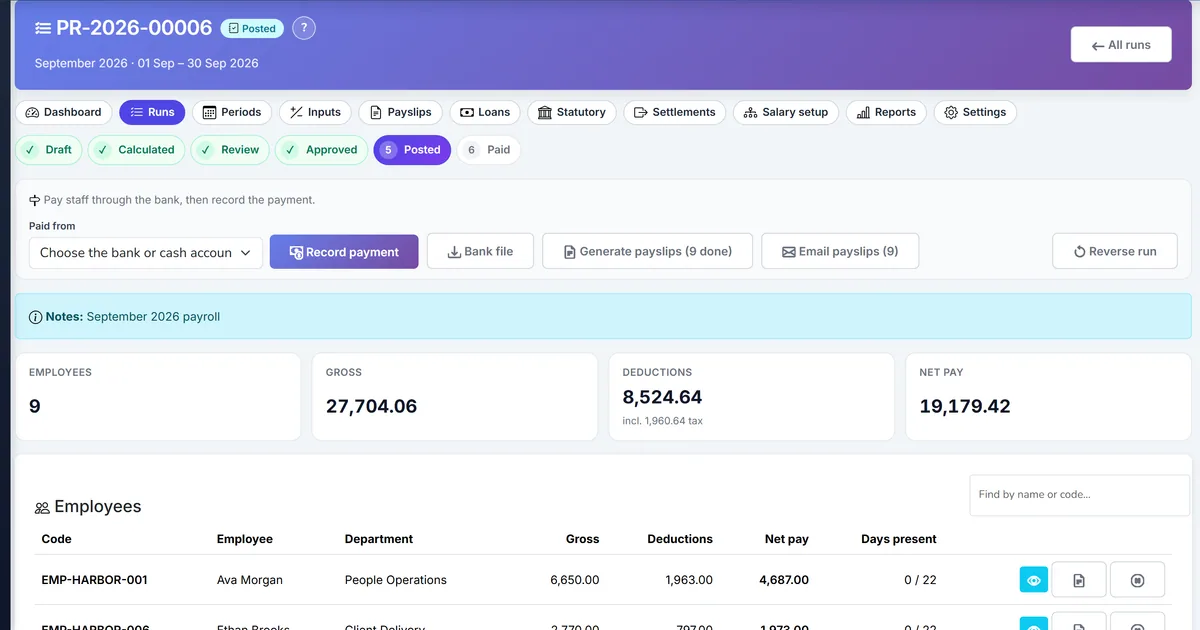
Runs get approved while silent skips hide unpaid staff
Managers assume every active employee is on the run when some lack a current salary.
Attendance gaps only surface when employees complain about deductions.
Approvers see totals only and miss zero-net or exclusion warnings.
Why this happens
- No structured exclusion report after Calculate.
- Approving from the runs list without opening Run details.
- Creating employee records without assigning Is Current salary.
- Calculating before attendance and leave are closed for the period.
Biznsbook addresses this through PayrollCalculationResult, exclusions panel, status stepper, no-salary and attendance flags when Payroll is licensed with HR Management — attendance and leave feed calculation, while Accounting posts accrual and payment.
Finance teams lose days each month reconciling versions that should never have diverged. Naming Biznsbook screens as the system of record — and closing periods when agreed — prevents silent edits that auditors flag immediately.
Step-by-step: Review Payroll Exclusions Before Approve
Built for HR and finance teams running Biznsbook Payroll under HRMS — salary structures, periods, runs, payslips, loans, and accounting posting on one tenant.
- Calculate the run. On Run details, click Calculate. Confirm success message includes processed and excluded counts when exclusions exist.
- Open the exclusions panel. Review reason codes such as NoSalary, AttendanceMissing, JoinedAfterPeriod, LeftBeforePeriod, and ZeroNet.
- Fix master data. Assign current salaries, complete attendance, or correct joining/last working dates as needed.
- Recalculate. Run Calculate again (or recalculate an individual employee) while status is Draft or Calculated.
- Review employee breakdown. Spot-check gross, deductions, tax, overtime, and net; open Employee detail for component lines.
- Submit for review. When exclusions are accepted or cleared, Submit for Review.
- Approve with Payroll.ApprovePayroll. Approver confirms totals and remaining warnings, then Approves.
Review results after the first full each pay period cycle. Adjust roles, mappings, or approvals where the same exception repeats.
Screen-level flows live in the Help Center. This guide focuses on the business process; help articles cover click-by-click navigation.
Common mistakes to avoid
- Mistake 1: No structured exclusion report after Calculate. Repeating this each month usually shows up first in pay accuracy, tax withholding, and GL close quality.
- Mistake 2: Approving from the runs list without opening Run details. Repeating this each month usually shows up first in pay accuracy, tax withholding, and GL close quality.
- Mistake 3: Creating employee records without assigning Is Current salary. Repeating this each month usually shows up first in pay accuracy, tax withholding, and GL close quality.
- Mistake 4: Calculating before attendance and leave are closed for the period. Repeating this each month usually shows up first in pay accuracy, tax withholding, and GL close quality.
Track recurring exceptions in month-end notes; each should map to a control above.
Best practices that hold up as you scale
- Calculate the run — On Run details, click Calculate.
- Open the exclusions panel — Review reason codes such as NoSalary, AttendanceMissing, JoinedAfterPeriod, LeftBeforePeriod, and ZeroNet.
- Fix master data — Assign current salaries, complete attendance, or correct joining/last working dates as needed.
- Recalculate — Run Calculate again (or recalculate an individual employee) while status is Draft or Calculated.
- Review employee breakdown — Spot-check gross, deductions, tax, overtime, and net; open Employee detail for component lines.
Teams that finish settings and periods before Calculate, clear exclusions before Approve, and reconcile tax and loan reports before Close period keep payroll and GL aligned.
How Biznsbook supports this workflow
PayrollCalculationResult is documented in Biznsbook Payroll capabilities. Use it as part of a controlled finance process — posting, review, and period close — not as an isolated export. When Sales, Purchase, Inventory, Taxation, Expense, or Finance Management modules are enabled, related documents can post through the central accounting posting service with double-entry validation.
exclusions panel is documented in Biznsbook Payroll capabilities. Use it as part of a controlled finance process — posting, review, and period close — not as an isolated export. When Sales, Purchase, Inventory, Taxation, Expense, or Finance Management modules are enabled, related documents can post through the central accounting posting service with double-entry validation.
status stepper is documented in Biznsbook Payroll capabilities. Use it as part of a controlled finance process — posting, review, and period close — not as an isolated export. When Sales, Purchase, Inventory, Taxation, Expense, or Finance Management modules are enabled, related documents can post through the central accounting posting service with double-entry validation.
no-salary and attendance flags is documented in Biznsbook Payroll capabilities. Use it as part of a controlled finance process — posting, review, and period close — not as an isolated export. When Sales, Purchase, Inventory, Taxation, Expense, or Finance Management modules are enabled, related documents can post through the central accounting posting service with double-entry validation.
Process Payroll and ApprovePayroll are separated so clerks can calculate while controllers approve and post.
Suggested implementation timeline
- Week 1: Document current process gaps and configure PayrollCalculationResult with finance owner sign-off.
- Weeks 2–3: Pilot on one month or one entity; post all test transactions through Biznsbook; freeze parallel spreadsheet journals.
- Week 4: Run first trial balance or report tie-out; fix mapping and permission issues.
- Month 2–3: Roll out to full team; add approvals and period close cadence from this guide.
- Ongoing: Monthly review using control tip and leadership dashboard.
Metrics to track monthly
- Open payroll periods matching company frequency
- Runs calculated with zero unexplained exclusions
- Tax withheld matching accrual TotalTax
- Payslips emailed (IsEmailed) after generate
- Loan EMI recovered on posted runs
Start with three metrics; trend direction matters more than a single point-in-time snapshot.
Spreadsheet / manual books vs integrated ERP
Compare typical manual finance work with Biznsbook PayrollCalculationResult and related capabilities.
| Capability | Manual / Spreadsheet | Biznsbook |
|---|---|---|
| Skip visibility | ❌ Silent omit from totals | ✅ Named exclusion with reason |
| Attendance gaps | ❌ Found after payday | ✅ Flagged on Calculate |
| Approval UX | ❌ Totals only | ✅ Stepper + exclusions panel |
| Fix path | ❌ Cancel entire run | ✅ Fix data and recalculate |
| Zero net | ❌ Looks like paid zero | ✅ Explicit ZeroNet flag |
| Permission | ❌ Anyone with View | ✅ Process vs Approve separated |
Control tip
Treat the exclusions panel like a bank reconciliation exception list — clear or accept every row before Post to accounting.
Document this in your finance SOP and revisit each quarter as transaction volume or entity structure changes.
Frequently asked questions
Does AttendanceMissing block calculation?
No. The employee can still calculate; the flag warns you that attendance-based deductions may be incomplete.
Where are exclusions stored?
On the run as CalculationExceptionsJson and shown on Run details after Calculate.
Can I approve with exclusions remaining?
Yes if you intentionally accept them — document why before Approve.
Do off-cycle runs use exclusions?
Yes. Selected-employee off-cycle runs still report NoSalary and related reasons for scoped employees.
How this differs by industry
Retail
Regional HR clears NoSalary exclusions before approving multi-store monthly runs.
Wholesale & distribution
Controllers reject Under Review runs that still show widespread AttendanceMissing flags.
Manufacturing
Plant payroll fixes joining dates for new hires flagged JoinedAfterPeriod before recalculate.