How to Open and Close POS Cashier Sessions
Shifts without float discipline cannot explain over or short cash
Cashiers start ringing sales without a declared opening float, so end-of-day counts never match.
Shared tills blur which register owns fiscal receipts and terminal Z totals.
Managers argue about variance because expected cash was never shown before close.
Why this happens
- Opening the till without selecting a POS terminal register.
- Skipping opening float or treating it as optional.
- Closing without reviewing opening float plus cash sales.
- Mixing mid-shift X totals with end-of-day terminal Z reports.
Biznsbook addresses this through cashier session open/close, register selection required, float variance when the POS module is licensed — terminal and back-office checkout share unified SaleBill posting.
Finance teams lose days each month reconciling versions that should never have diverged. Naming Biznsbook screens as the system of record — and closing periods when agreed — prevents silent edits that auditors flag immediately.
Step-by-step: Open and Close POS Cashier Sessions
Built for retailers who need a fast till, float discipline, and the same INV-* sale bill in stock and GL — not a standalone cash register.
- Open POS Terminal. Go to POS Terminal (/pos). If no session is open, Biznsbook prompts Open session.
- Select the register. Choose an active POS terminal from the dropdown — required for fiscal and terminal Z linkage.
- Enter opening float. Count cash in the drawer, enter the amount, and confirm. One open session per user per company.
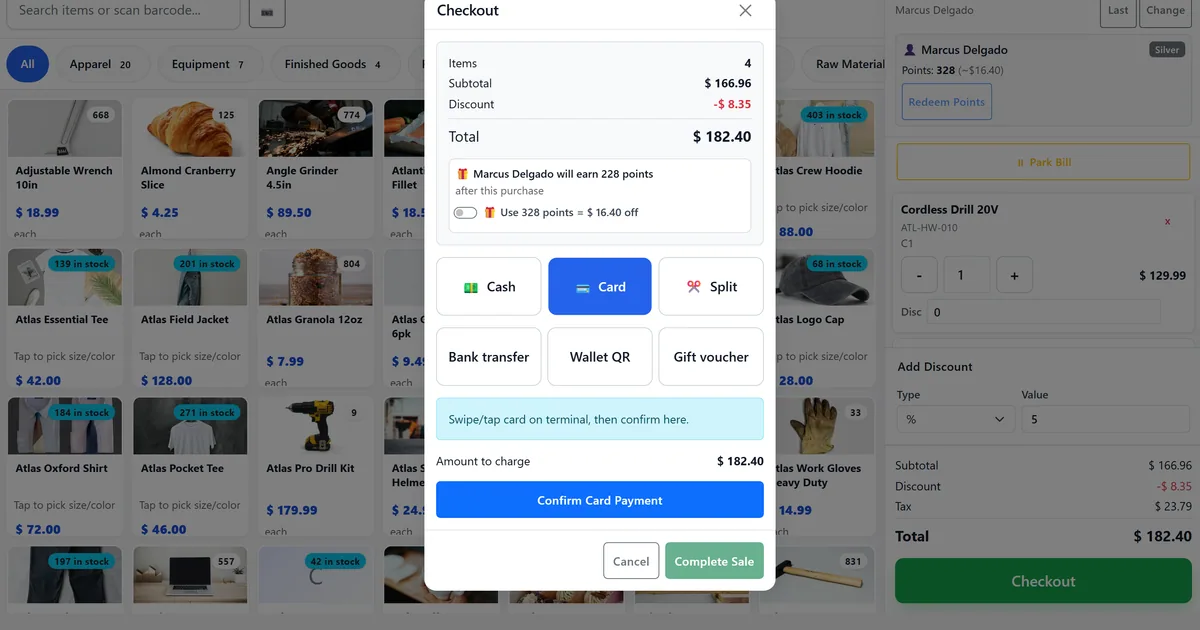
- Ring sales on the till. Use categories, search, barcode, park/resume, and cash/card/split checkout as needed.
- Review expected cash. At close (F12), check opening float + cash sales (− cash refunds when shown) versus counted float.
- Close and print session Z. Enter counted closing cash and optional notes. Variance follows PosSettings (WarnOnly or PostToGL). Open the session Z-report.
- Spot-check mid-shift with X. Use header X-Report anytime without closing — session Z still prints after close.
Review results after the first full weekly cycle. Adjust roles, mappings, or approvals where the same exception repeats.
Screen-level flows live in the Help Center. This guide focuses on the business process; help articles cover click-by-click navigation.
Common mistakes to avoid
- Mistake 1: Opening the till without selecting a POS terminal register. Repeating this each month usually shows up first in cash reconciliation and till speed.
- Mistake 2: Skipping opening float or treating it as optional. Repeating this each month usually shows up first in cash reconciliation and till speed.
- Mistake 3: Closing without reviewing opening float plus cash sales. Repeating this each month usually shows up first in cash reconciliation and till speed.
- Mistake 4: Mixing mid-shift X totals with end-of-day terminal Z reports. Repeating this each month usually shows up first in cash reconciliation and till speed.
Track recurring exceptions in month-end notes; each should map to a control above.
Best practices that hold up as you scale
- Open POS Terminal — Go to POS Terminal (/pos).
- Select the register — Choose an active POS terminal from the dropdown — required for fiscal and terminal Z linkage.
- Enter opening float — Count cash in the drawer, enter the amount, and confirm.
- Ring sales on the till — Use categories, search, barcode, park/resume, and cash/card/split checkout as needed.
- Review expected cash — At close (F12), check opening float + cash sales (− cash refunds when shown) versus counted float.
Teams that open on a named register, park holds, and close with expected cash keep variance disputes short.
How Biznsbook supports this workflow
cashier session open/close is documented in Biznsbook POS capabilities. Use it as part of a controlled finance process — posting, review, and period close — not as an isolated export. When Sales, Purchase, Inventory, Taxation, Expense, or Finance Management modules are enabled, related documents can post through the central accounting posting service with double-entry validation.
register selection required is documented in Biznsbook POS capabilities. Use it as part of a controlled finance process — posting, review, and period close — not as an isolated export. When Sales, Purchase, Inventory, Taxation, Expense, or Finance Management modules are enabled, related documents can post through the central accounting posting service with double-entry validation.
float variance is documented in Biznsbook POS capabilities. Use it as part of a controlled finance process — posting, review, and period close — not as an isolated export. When Sales, Purchase, Inventory, Taxation, Expense, or Finance Management modules are enabled, related documents can post through the central accounting posting service with double-entry validation.
Sessions, barcode, split tender, X/Z reports, and receipt branding are covered in Docs/POS — use Help Center for click-level screens.
Suggested implementation timeline
- Week 1: Document current process gaps and configure cashier session open/close with finance owner sign-off.
- Weeks 2–3: Pilot on one month or one entity; post all test transactions through Biznsbook; freeze parallel spreadsheet journals.
- Week 4: Run first trial balance or report tie-out; fix mapping and permission issues.
- Month 2–3: Roll out to full team; add approvals and period close cadence from this guide.
- Ongoing: Monthly review using go-live tip and leadership dashboard.
Metrics to track monthly
- Open sessions with a selected POS terminal
- Cash sales with ClientRequestId retries that stay single INV-*
- Parked bills resolved before close
- X-reports run mid-shift without closing
- Terminal Z generated per register/day
Start with three metrics; trend direction matters more than a single point-in-time snapshot.
Spreadsheet / manual books vs integrated ERP
Compare typical manual finance work with Biznsbook cashier session open/close and related capabilities.
| Capability | Manual / Spreadsheet | Biznsbook |
|---|---|---|
| Register link | ❌ Shared unnamed till | ✅ Required POS terminal at open |
| Opening float | ❌ Optional or forgotten | ✅ Entered before first sale |
| Expected cash | ❌ Mental math | ✅ Shown on close modal |
| Variance | ❌ Argue later | ✅ WarnOnly or PostToGL |
| Mid-shift check | ❌ Close to peek | ✅ X-report keeps session open |
| Shift document | ❌ Paper tape only | ✅ Session Z after close |
Go-live tip
Create POS terminals under Payments before the first shift, then train cashiers on open → sell → X check → close → session Z.
Document this in your finance SOP and revisit each quarter as transaction volume or entity structure changes.
Frequently asked questions
Can I open a session without a terminal?
No. PosTerminalSessionValidator rejects missing or invalid registers so fiscal and terminal Z stay attributed.
What is expected cash?
Opening float plus cash in the drawer from sales (cash tenders and split cash). The close UI shows the breakdown.
Is X-report the same as Z-report?
No. X is mid-shift while the session stays open. Session Z prints after close. Terminal Z is by register and date under Payments.
Where is the short help article?
See https://help.biznsbook.com/pos/open-and-close-a-cashier-session for a short Help Center walkthrough; this guide covers the full shift discipline.
Can I count the float note by note?
Yes. With counting by notes and coins turned on in Till settings, the cashier enters how many of each note and coin at open and close, and the total becomes the float or the counted cash. With blind close on, cashiers count without seeing expected cash and a manager sees the variance on the session review.
How this differs by industry
Retail
Boutique and grocery cashiers open on a named register so each float and Z-report stay tied to one till.
Wholesale & distribution
Counter sales teams still use sessions when cash is collected at a front desk register.
Manufacturing
Factory outlet shops open a POS session for finished-goods cash sales without using wholesale invoices.