How to Run POS Z-Reports and X-Reports
One “Z” label hides three different reconciliation questions
Managers close the session just to peek at sales mid-day and lose float continuity.
Cashiers print terminal Z while another user still has an open session on the same register.
Tax on Z does not match invoices because legacy and unified sales are not understood.
Why this happens
- Using close as a report tool instead of X-report.
- Confusing session Z with terminal/day Z.
- Ignoring back-office POS checkout on the same register.
- Expecting fiscal QR status to appear on every Z printout.
Biznsbook addresses this through mid-shift X-report, session Z-report, terminal Z-reports when the POS module is licensed — terminal and back-office checkout share unified SaleBill posting.
Finance teams lose days each month reconciling versions that should never have diverged. Naming Biznsbook screens as the system of record — and closing periods when agreed — prevents silent edits that auditors flag immediately.
Step-by-step: Run POS Z-Reports and X-Reports
Built for retailers who need a fast till, float discipline, and the same INV-* sale bill in stock and GL — not a standalone cash register.
- Run X mid-shift. From the POS header choose X-Report (/pos/x-report). Session stays open; totals mirror session activity so far.
- Close the session. Enter counted float, review variance, then open session Z from the close flow.
- Read session Z. Review cashier, terminal, duration, cash/card/split counts, discounts, tax, and float variance.
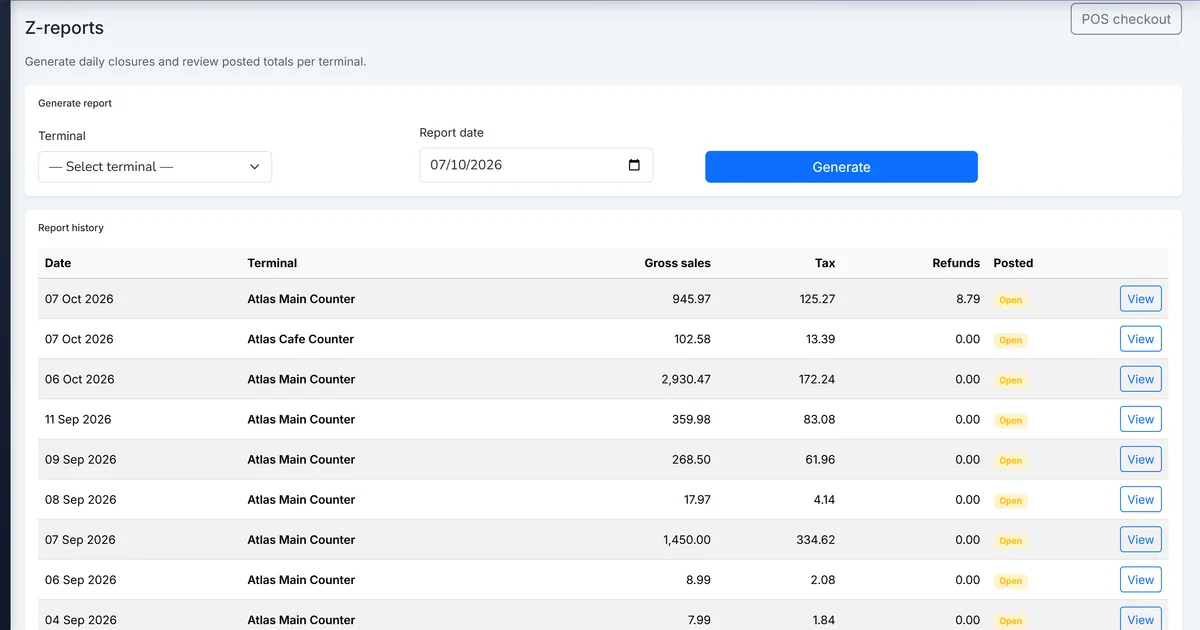
- Generate terminal Z. Payments → Z-reports → pick terminal and date → Generate. Includes till and back-office sales for that register.
- Check tax breakdown. Use Z tax rows by group/component when Taxation is configured.
- Reconcile INV-* lists. Sales filtered IsPOS should match session or terminal totals for the same window.
- Keep Help Center handy. Short session article at https://help.biznsbook.com/pos/open-and-close-a-cashier-session complements these reports.
Review results after the first full weekly cycle. Adjust roles, mappings, or approvals where the same exception repeats.
Screen-level flows live in the Help Center. This guide focuses on the business process; help articles cover click-by-click navigation.
Common mistakes to avoid
- Mistake 1: Using close as a report tool instead of X-report. Repeating this each month usually shows up first in cash reconciliation and till speed.
- Mistake 2: Confusing session Z with terminal/day Z. Repeating this each month usually shows up first in cash reconciliation and till speed.
- Mistake 3: Ignoring back-office POS checkout on the same register. Repeating this each month usually shows up first in cash reconciliation and till speed.
- Mistake 4: Expecting fiscal QR status to appear on every Z printout. Repeating this each month usually shows up first in cash reconciliation and till speed.
Track recurring exceptions in month-end notes; each should map to a control above.
Best practices that hold up as you scale
- Run X mid-shift — From the POS header choose X-Report (/pos/x-report).
- Close the session — Enter counted float, review variance, then open session Z from the close flow.
- Read session Z — Review cashier, terminal, duration, cash/card/split counts, discounts, tax, and float variance.
- Generate terminal Z — Payments → Z-reports → pick terminal and date → Generate.
- Check tax breakdown — Use Z tax rows by group/component when Taxation is configured.
Teams that open on a named register, park holds, and close with expected cash keep variance disputes short.
How Biznsbook supports this workflow
mid-shift X-report is documented in Biznsbook POS capabilities. Use it as part of a controlled finance process — posting, review, and period close — not as an isolated export. When Sales, Purchase, Inventory, Taxation, Expense, or Finance Management modules are enabled, related documents can post through the central accounting posting service with double-entry validation.
session Z-report is documented in Biznsbook POS capabilities. Use it as part of a controlled finance process — posting, review, and period close — not as an isolated export. When Sales, Purchase, Inventory, Taxation, Expense, or Finance Management modules are enabled, related documents can post through the central accounting posting service with double-entry validation.
terminal Z-reports is documented in Biznsbook POS capabilities. Use it as part of a controlled finance process — posting, review, and period close — not as an isolated export. When Sales, Purchase, Inventory, Taxation, Expense, or Finance Management modules are enabled, related documents can post through the central accounting posting service with double-entry validation.
Sessions, barcode, split tender, X/Z reports, and receipt branding are covered in Docs/POS — use Help Center for click-level screens.
Suggested implementation timeline
- Week 1: Document current process gaps and configure mid-shift X-report with finance owner sign-off.
- Weeks 2–3: Pilot on one month or one entity; post all test transactions through Biznsbook; freeze parallel spreadsheet journals.
- Week 4: Run first trial balance or report tie-out; fix mapping and permission issues.
- Month 2–3: Roll out to full team; add approvals and period close cadence from this guide.
- Ongoing: Monthly review using report map and leadership dashboard.
Metrics to track monthly
- Open sessions with a selected POS terminal
- Cash sales with ClientRequestId retries that stay single INV-*
- Parked bills resolved before close
- X-reports run mid-shift without closing
- Terminal Z generated per register/day
Start with three metrics; trend direction matters more than a single point-in-time snapshot.
Spreadsheet / manual books vs integrated ERP
Compare typical manual finance work with Biznsbook mid-shift X-report and related capabilities.
| Capability | Manual / Spreadsheet | Biznsbook |
|---|---|---|
| Mid-shift peek | ❌ Close and reopen | ✅ X-report keeps session open |
| Cashier shift | ❌ Paper Z only | ✅ Session Z after close |
| Register day | ❌ Till tape sum | ✅ Terminal Z by date |
| Back-office sales | ❌ Missed on till Z | ✅ Included on terminal Z |
| Tax rows | ❌ Manual spreadsheet | ✅ Z tax breakdown |
| Unified INV-* | ❌ Separate POS numbers | ✅ Same SaleBill INV-* |
Report map
X = mid-shift snapshot. Session Z = one closed CashierSession. Terminal Z = one POSTerminal + date (Payments menu).
Document this in your finance SOP and revisit each quarter as transaction volume or entity structure changes.
Frequently asked questions
Does X-report close my float?
No. X is read-only while the session remains Open.
Which report do I give finance daily?
Usually terminal Z by register and date, plus session Z files for each cashier who closed.
Do refunds appear?
Terminal and session totals follow posted POS activity; process refunds through Payments → POS refund so stock and GL reverse correctly.
Is Toast the same as terminal Z?
Toast is a separate integration that can post IsPOS sale bills; terminal Z still aggregates by PosTerminalId for Biznsbook registers.
What till activity does the session Z show?
The session Z-report and the mid-shift X-report list cash refunds, pay-ins, top-ups, pay-outs, cash drops and rounding under cash sales, so expected cash adds up line by line. A Till Activity block counts returns, voids, corrections and exchanges, money exchanges, no-sales and lines removed before payment.
How this differs by industry
Retail
Store managers run X before lunch rush and terminal Z after all cashiers close.
Wholesale & distribution
Showroom counters use session Z per cashier and terminal Z for the shared register day.
Manufacturing
Outlet shops print session Z for cash handlers and terminal Z for plant retail reconciliation.