How to Ring Sales with Barcode on POS
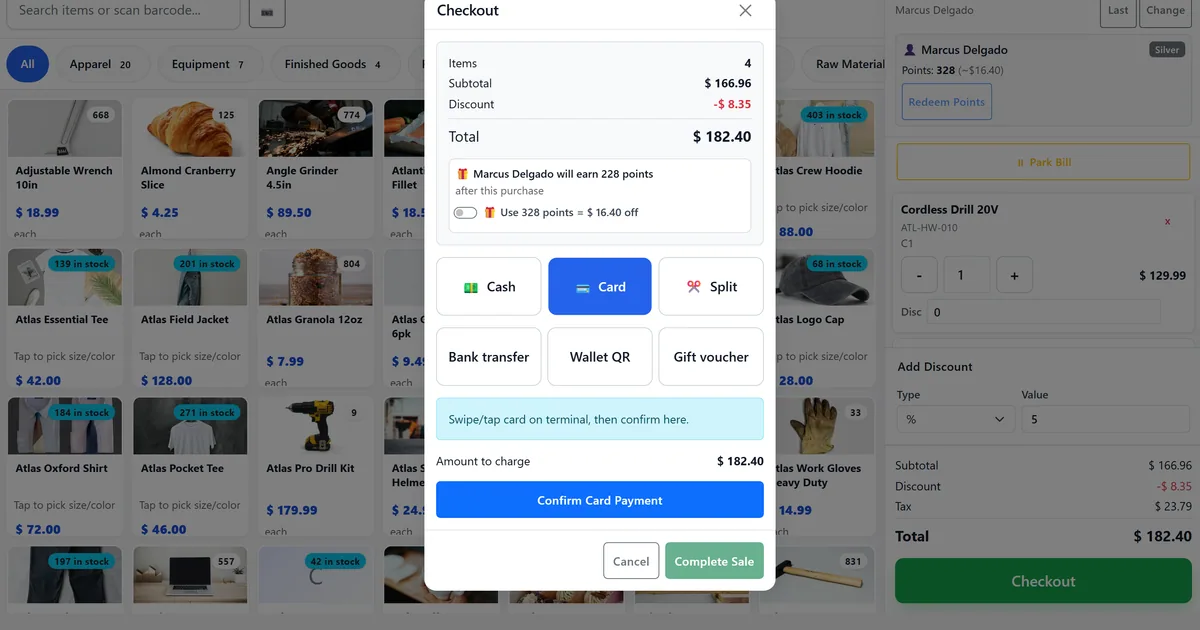
Slow lookup turns peak hours into queues
Cashiers type partial names while customers wait with scannable barcodes in hand.
Scan wedges fail when focus sits in search, and staff think the scanner is broken.
Cart totals change at payment because tax was zero on the till display.
Why this happens
- Relying on name search instead of barcode.
- Not using Enter in search for barcode-shaped codes.
- Missing F-key training for checkout and tenders.
- No live tax estimate before complete sale.
Biznsbook addresses this through barcode lookup API, scan-in-search, keyboard shortcuts when the POS module is licensed — terminal and back-office checkout share unified SaleBill posting.
Finance teams lose days each month reconciling versions that should never have diverged. Naming Biznsbook screens as the system of record — and closing periods when agreed — prevents silent edits that auditors flag immediately.
Step-by-step: Ring Sales with Barcode on POS
Built for retailers who need a fast till, float discipline, and the same INV-* sale bill in stock and GL — not a standalone cash register.
- Open an active session. Ensure /pos has an open cashier session on a valid register.
- Scan or search. Use the wedge/camera, or type a barcode in search and press Enter for item-by-barcode lookup.
- Confirm the cart line. Adjust quantity, fabric length, or clothing variants when prompted.
- Apply discounts. Use line Disc fields and/or order discount percent or fixed amount.
- Watch tax and total. Cart totals refresh from /api/pos/quote-totals so checkout matches the estimate.
- Attach customer if needed. F4 opens customer search; Last recalls the previous party; MBR- cards can auto-select loyalty.
- Checkout fast. F8 opens checkout; F9/F10/F11 select cash/card/split; Alt+P reprints the last receipt.
Review results after the first full weekly cycle. Adjust roles, mappings, or approvals where the same exception repeats.
Screen-level flows live in the Help Center. This guide focuses on the business process; help articles cover click-by-click navigation.
Common mistakes to avoid
- Mistake 1: Relying on name search instead of barcode. Repeating this each month usually shows up first in cash reconciliation and till speed.
- Mistake 2: Not using Enter in search for barcode-shaped codes. Repeating this each month usually shows up first in cash reconciliation and till speed.
- Mistake 3: Missing F-key training for checkout and tenders. Repeating this each month usually shows up first in cash reconciliation and till speed.
- Mistake 4: No live tax estimate before complete sale. Repeating this each month usually shows up first in cash reconciliation and till speed.
Track recurring exceptions in month-end notes; each should map to a control above.
Best practices that hold up as you scale
- Open an active session — Ensure /pos has an open cashier session on a valid register.
- Scan or search — Use the wedge/camera, or type a barcode in search and press Enter for item-by-barcode lookup.
- Confirm the cart line — Adjust quantity, fabric length, or clothing variants when prompted.
- Apply discounts — Use line Disc fields and/or order discount percent or fixed amount.
- Watch tax and total — Cart totals refresh from /api/pos/quote-totals so checkout matches the estimate.
Teams that open on a named register, park holds, and close with expected cash keep variance disputes short.
How Biznsbook supports this workflow
barcode lookup API is documented in Biznsbook POS capabilities. Use it as part of a controlled finance process — posting, review, and period close — not as an isolated export. When Sales, Purchase, Inventory, Taxation, Expense, or Finance Management modules are enabled, related documents can post through the central accounting posting service with double-entry validation.
scan-in-search is documented in Biznsbook POS capabilities. Use it as part of a controlled finance process — posting, review, and period close — not as an isolated export. When Sales, Purchase, Inventory, Taxation, Expense, or Finance Management modules are enabled, related documents can post through the central accounting posting service with double-entry validation.
keyboard shortcuts is documented in Biznsbook POS capabilities. Use it as part of a controlled finance process — posting, review, and period close — not as an isolated export. When Sales, Purchase, Inventory, Taxation, Expense, or Finance Management modules are enabled, related documents can post through the central accounting posting service with double-entry validation.
Sessions, barcode, split tender, X/Z reports, and receipt branding are covered in Docs/POS — use Help Center for click-level screens.
Suggested implementation timeline
- Week 1: Document current process gaps and configure barcode lookup API with finance owner sign-off.
- Weeks 2–3: Pilot on one month or one entity; post all test transactions through Biznsbook; freeze parallel spreadsheet journals.
- Week 4: Run first trial balance or report tie-out; fix mapping and permission issues.
- Month 2–3: Roll out to full team; add approvals and period close cadence from this guide.
- Ongoing: Monthly review using training tip and leadership dashboard.
Metrics to track monthly
- Open sessions with a selected POS terminal
- Cash sales with ClientRequestId retries that stay single INV-*
- Parked bills resolved before close
- X-reports run mid-shift without closing
- Terminal Z generated per register/day
Start with three metrics; trend direction matters more than a single point-in-time snapshot.
Spreadsheet / manual books vs integrated ERP
Compare typical manual finance work with Biznsbook barcode lookup API and related capabilities.
| Capability | Manual / Spreadsheet | Biznsbook |
|---|---|---|
| Item find | ❌ Name typing only | ✅ Barcode + scan-in-search |
| Shortcuts | ❌ Mouse only | ✅ F1–F12 help overlay |
| Tax preview | ❌ Surprise at pay | ✅ Live quote-totals |
| Line discount | ❌ Order only | ✅ Line + order discounts |
| Draft safety | ❌ Lost on refresh | ✅ sessionStorage draft restore |
| Customer | ❌ Re-search every sale | ✅ Last-customer recall |
Training tip
Drill scan → F8 → F9 on a training register before the first busy Saturday.
Document this in your finance SOP and revisit each quarter as transaction volume or entity structure changes.
Frequently asked questions
Why did my scan not add when search was focused?
Wedge mode ignores inputs by design. Use Enter on a barcode-like value in search, or click outside inputs before scanning.
Where is the shortcut list?
Press ? on the terminal to open the POS keyboard shortcuts overlay.
Does barcode work for loyalty cards?
Loyalty card numbers starting with MBR- are handled in customer search, not as product barcodes.
Is inventory updated on scan?
Stock decreases when you Complete sale — not when you only add to cart.
How this differs by industry
Retail
Grocery and fashion tills lean on barcode and F-keys to keep lines moving.
Wholesale & distribution
Counter staff scan SKUs then attach trade customers before tender.
Manufacturing
Outlet associates scan finished goods barcodes the same way as retail SKUs.