WhatsApp Integration for Your ERP
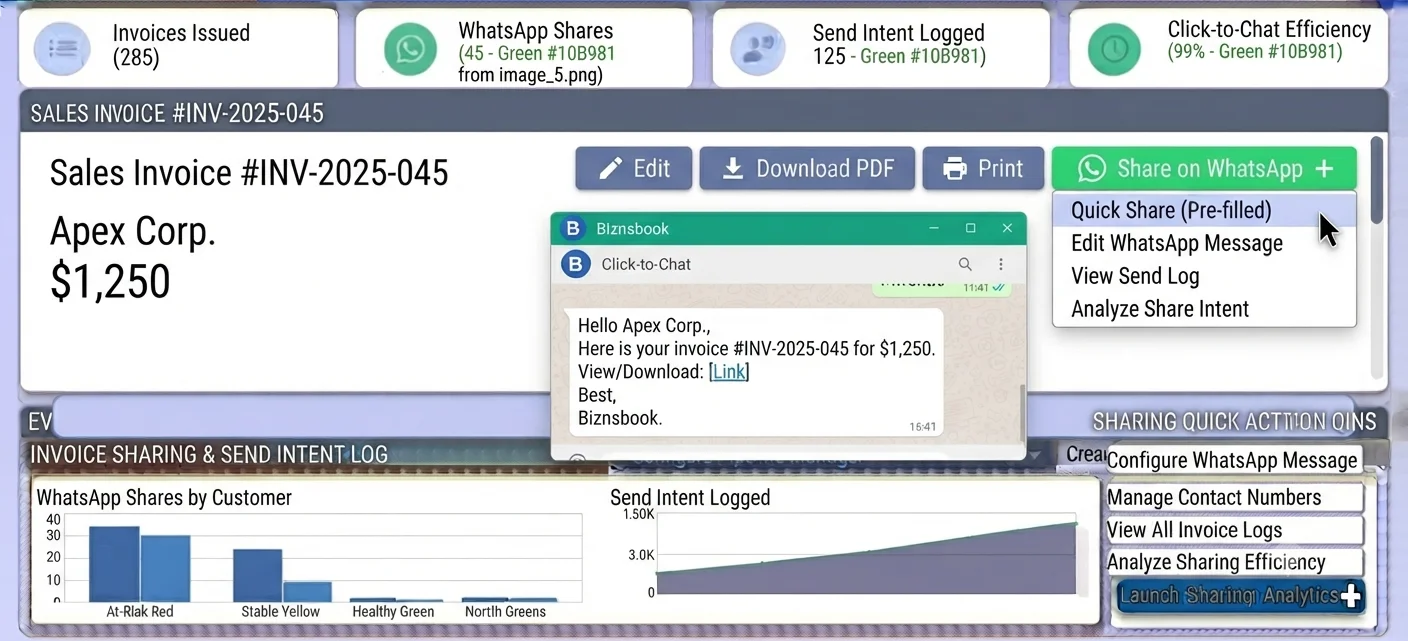
What the WhatsApp integration does
- Share documents in one click. Send via WhatsApp on sale and purchase invoices, Real Estate installment payment links, restaurant reservations and CRM records opens a chat with the number and message already filled in.
- Send approved templates. With the Cloud API, Biznsbook sends Meta-approved Utility templates such as invoice ready, payment reminder, rent reminder and order status, and tracks each message through sent, delivered and read.
- Answer customers in a shared inbox. Messages sent to your business number land in a WhatsApp Inbox where teammates reply, assign, add private notes and resolve conversations. Photos, voice notes, documents and locations show in the thread.
- Reply freely inside 24 hours. Write free text for 24 hours after the customer's last message. After that the inbox asks for an approved template, so you stay inside WhatsApp's rules.
- Know who the customer is. An incoming number is matched to your customers, suppliers and CRM contacts and leads, so the team sees the person, not just a number.
- Automate replies. Business Automation can react to a received message, look the customer up and answer, or send a template when an invoice goes overdue.
- Away message and opening hours. Set your opening hours and a message that goes out once when someone writes while you're closed.
- Consent built in. A customer who writes first is recorded as opted in, STOP opts them out and START brings them back, and Biznsbook won't message someone who stopped.
- Connection health. A status card shows whether messages are arriving, the number's quality rating and when access expires, and the Attention Center warns you before the connection breaks.
How to connect WhatsApp to Biznsbook
- Choose how you will connect. Use Click-to-Chat to start with no setup. Choose the Cloud API for automatic sends and the inbox.
- Open WhatsApp Settings. A company admin goes to Management, WhatsApp Settings and sets the default country code so local numbers become full international numbers.
- Connect your number. Choose Connect with Meta, sign in, and pick your business and number. If your number is already in the WhatsApp Business app, choose the option to keep using that app. Without Meta sign-in you can enter the details from your Meta account by hand.
- Check the connection. The status card shows your number and whether messages are arriving. Send yourself a test message to prove it works.
- Prepare templates. Generate the starter Utility templates, create them in Meta Business Manager and let Biznsbook pick up the approval automatically.
- Set consent and an away message. Keep the opt-in requirement on, then add your opening hours and away message.
- Open the inbox. Ask a customer to message your number and watch the conversation appear. Assign it, reply and resolve it.
An in-app WhatsApp Guide ticks each step off as you finish it, so a new admin can set this up without a call.
Click-to-Chat, Cloud API or Cloud API with the WhatsApp Business app
| Capability | Click-to-Chat | Cloud API | Cloud API + WhatsApp Business app |
|---|---|---|---|
| Setup | ✅ None | ⚠️ Meta business account and a number | ⚠️ Meta business account and a number already in the WhatsApp Business app |
| Sends by itself | ❌ A person taps Send | ✅ Approved templates | ✅ Approved templates |
| Receives customer messages | ❌ No | ✅ Shared inbox | ✅ Shared inbox and your phone |
| Automation and delivery tracking | ❌ Intent only | ✅ Sent, delivered, read | ✅ Sent, delivered, read |
| Keep using the phone app | ✅ Yes | ❌ Number moves to the Cloud API | ✅ Yes |
Biznsbook works with a number connected to the WhatsApp Business platform. It cannot read the messages of an ordinary personal WhatsApp account.
Security and control
- Access tokens are encrypted at rest and never shown again after connecting. With Meta sign-in the token is exchanged on the server and never reaches the browser.
- Every webhook from WhatsApp is checked against a signature; an unsigned request is refused.
- Each WhatsApp number can belong to one company only, and every message, conversation and file is kept per company.
- Customer photos and documents are stored in your company's file storage and opened through short-lived, audited links.
- Replying in the inbox needs a dedicated permission, separate from managing templates and settings.
Best practices
- Use Utility templates for invoices, reminders and order updates, and keep Marketing templates for people who agreed to hear from you.
- Assign every conversation to a person; Biznsbook flags chats nobody answered within the time you set.
- Keep the quality rating green: send fewer promotional messages if customers start blocking you.
- Reconnect early when the status card warns that access is about to expire.
Frequently asked questions
Does Biznsbook integrate with WhatsApp?
Yes. Biznsbook supports Click-to-Chat sharing and the WhatsApp Business Cloud API, which sends approved template messages, receives customer messages in a shared team inbox and triggers automatic replies.
Can Biznsbook read the messages on my normal WhatsApp account?
No. Only a number connected to the WhatsApp Business platform can send and receive in Biznsbook. If your number is in the WhatsApp Business app, you can connect it and keep using the app. A personal WhatsApp number has to move to the Cloud API first.
Can I keep using the WhatsApp Business app on my phone?
Yes, if your number is in the WhatsApp Business app. Connect it with the option to keep using the app: your phone keeps working, your team also answers in Biznsbook, and messages you type on the phone appear in the inbox. Availability depends on Meta and your country.
Do I need a Meta account?
Not for Click-to-Chat. You need a Meta business account for the Cloud API, the shared inbox and automatic sends.
Can my team reply to customers from Biznsbook?
Yes. The WhatsApp Inbox lets teammates reply, assign conversations, add private notes and resolve them. You can write freely for 24 hours after the customer's last message; after that you send an approved template.
Does Biznsbook handle opt-in and STOP requests?
Yes. A customer who writes to you first is recorded as opted in, STOP opts them out, START brings them back, and Biznsbook does not send template messages to someone who stopped.
Can I send photos or documents from the inbox?
Customers' photos, voice notes, documents and locations show in the inbox. Sending your own photos, documents or voice notes from the inbox isn't available yet; share documents with Click-to-Chat or templates.