How to Automate WhatsApp Customer Updates
Manual WhatsApp updates do not scale past a handful of accounts
Click-to-Chat is excellent for invoice and rent token shares when a human should confirm the send. It fails when hundreds of payment reminders, order-status notices, or OTP messages must leave on schedule without someone tapping Send on a phone.
Teams that paste freeform blasts outside Meta rules risk template rejection and quality rating damage. Without an opt-in ledger and STOP handling, unattended Cloud API marketing or utility sends can quietly burn the WABA.
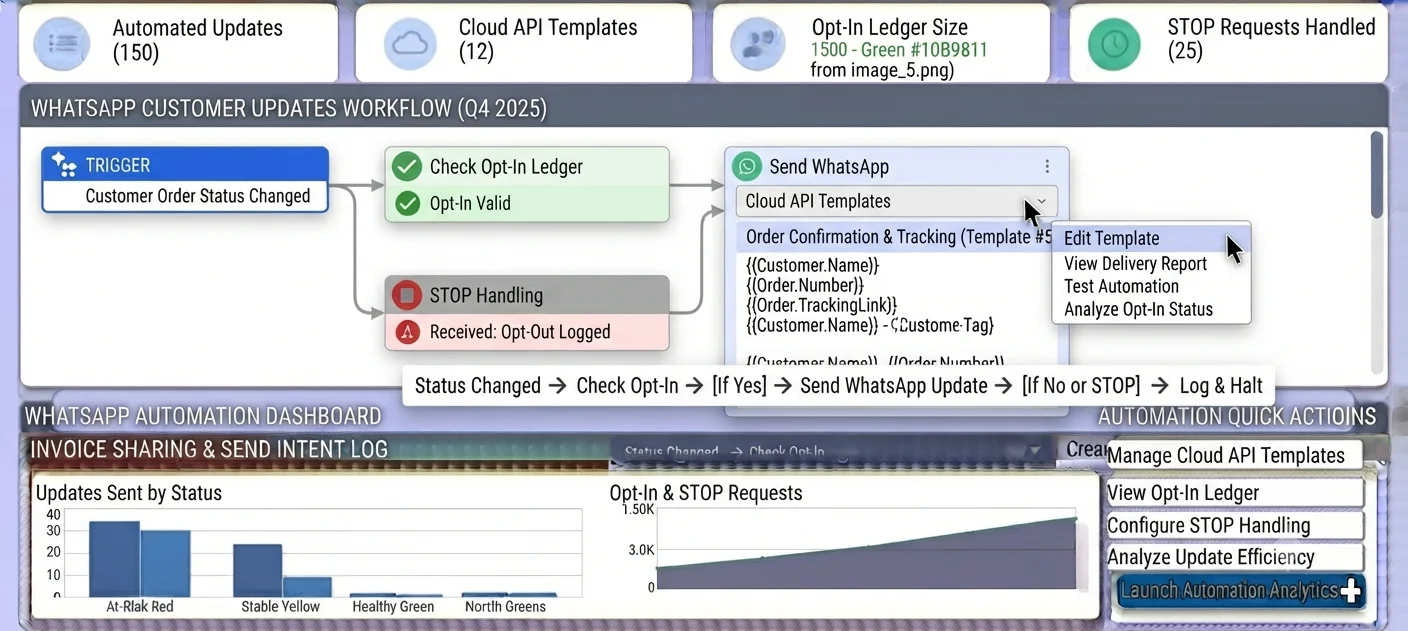
Automation without approved templates, webhook delivery receipts, or WhatsAppLog correlation leaves RevOps guessing whether customers saw the update. The Biznsbook path ties Communication Center templates, Business Automation Send WhatsApp, and consent-aware suppression into one ERP channel.
Why this happens
- Staff stay on Click-to-Chat forever even when volume needs unattended sends.
- Workflows try freeform Cloud API messages outside the 24-hour customer-initiated window.
- Opt-in required is disabled or WhatsAppOptIn is empty, so STOP cannot protect quality rating.
- Templates live in personal Meta screens instead of Communication Center CRUD with approval polling.
Biznsbook addresses this with Embedded Signup, CloudApi company settings, template library, webhook POST /api/whatsapp/webhook (X-Hub-Signature-256), Send WhatsApp actions, and consent-aware opt-in / STOP. Keep human Click-to-Chat for high-touch shares such as invoice WhatsApp shares and rent reminder token links.
Align cadence design with customer communications and event enrollment patterns from automated lead follow-up so WhatsApp and email drips do not contradict each other.
Step-by-step: Automate WhatsApp Customer Updates
Built for RevOps, CRM admins, and automation owners who already use Business Automation and need Cloud API template sends with compliance controls.
- Connect Meta Cloud API. Use Embedded Signup to connect the tenant WhatsApp Business Account, then set provider mode to CloudApi with Phone Number Id, WABA Id, encrypted access token, and verified display number.
- Confirm opt-in required. Keep the opt-in required flag enabled (default true for Cloud API) and populate WhatsAppOptIn for parties or employees with E.164 phones and source.
- Create and submit templates. In Communication Center, create Utility or Marketing templates, submit to Meta, and poll approval status. Start from seeded invoice ready, payment reminder, rent reminder, order status, or OTP templates when they fit.
- Add Send WhatsApp to a workflow. In Business Automation, add the Send WhatsApp action, pick an approved template from builder metadata, and map @Phone or {{Phone}} from the triggering event payload.
- Verify webhook receipts. Confirm POST /api/whatsapp/webhook receives delivery and read updates with X-Hub-Signature-256 verification and updates WhatsAppLog Status and ProviderMessageId.
- Test STOP handling. Send STOP or UNSUBSCRIBE inbound, confirm OptedOutAt is set on WhatsAppOptIn, and verify subsequent Cloud API sends are suppressed.
- Activate with monitoring. Activate the workflow inactive-first for a pilot segment, watch whatsapp.message.failed events, then expand cadence for reminders and status updates.
Review results after the first full weekly cycle. Adjust template language and enrollment events where the same failure reason repeats in WhatsAppLog.
Common mistakes to avoid
- Mistake 1: Sending freeform Cloud API text outside the 24-hour window instead of approved Utility / Marketing / Authentication templates.
- Mistake 2: Leaving opt-in required off or skipping WhatsAppOptIn rows so STOP cannot set OptedOutAt meaningfully.
- Mistake 3: Mapping the wrong phone token so Send WhatsApp cannot resolve @Phone / {{Phone}} from the event payload.
- Mistake 4: Going live without webhook signature verification or ProviderMessageId correlation on WhatsAppLog.
Track recurring exceptions in automation run notes; each should map to a control above.
Best practices that hold up as you scale
- Create workflows inactive, test one template send, then activate — same discipline as other Biznsbook automations.
- Prefer Utility templates for payment, invoice ready, rent reminder, and order status updates.
- Keep Communication Center as the system of record for template CRUD and Meta approval status.
- Monitor whatsapp.message.delivered, .read, and .failed alongside WhatsAppLog Status transitions.
- Retain Click-to-Chat for exceptions that need a human voice after automation fails.
Teams that review opt-outs monthly protect quality rating better than teams that only watch send volume.
How Biznsbook supports this workflow
Meta Cloud API + Embedded Signup lets the tenant connect their own WhatsApp Business Account via Meta JS SDK and store Phone Number Id, WABA Id, encrypted access token, and verified display number under CloudApi provider mode.
WhatsApp templates library lives in Communication Center with CRUD, Meta submit, approval polling, and a default seeder for invoice ready, payment reminder, rent reminder, order status, and OTP utility starters.
Send WhatsApp workflow action resolves phone from the event payload (@Phone / {{Phone}}) and sends an approved template; builder metadata comes from GET api/v1/automation/actions/whatsapp-templates.
Webhook at POST /api/whatsapp/webhook handles delivery/read receipts and inbound messages with X-Hub-Signature-256 verification, updating WhatsAppLog including ProviderMessageId.
Consent-aware controls include WhatsAppOptIn (party/employee + E.164 + source) and STOP / UNSUBSCRIBE inbound handling that sets OptedOutAt and suppresses future Cloud API sends. Opt-in required defaults true for Cloud API.
Events available to automation include whatsapp.message.received, .delivered, .read, and .failed. Quality rating indicator polling from Meta phone status is Phase 2 polish — still design sends as if rating matters.
Suggested implementation timeline
- Week 1: Complete Embedded Signup, set CloudApi fields, confirm webhook signature verification in a non-prod tenant.
- Weeks 2–3: Seed or create Utility templates; collect WhatsAppOptIn for a pilot segment; test STOP.
- Week 4: Ship one Send WhatsApp workflow inactive, validate WhatsAppLog Status and ProviderMessageId, then activate.
- Month 2–3: Add payment reminder, order status, or rent reminder templates; keep Click-to-Chat for manual exceptions.
- Ongoing: Monthly opt-out review, failed-message triage, and template language refresh.
Templates and the 24-hour service window
Outside the 24-hour customer-initiated window, Cloud API only accepts pre-approved Utility, Marketing, or Authentication templates. Inside the window after a customer message, freeform replies are allowed for service conversations.
Automation Send WhatsApp is built for approved templates resolved through builder metadata. Do not design unattended freeform blasts for payment reminders; use Utility templates such as the seeded payment reminder or rent reminder instead.
Expanded touchpoints such as HRMS payslip notify, expense approval nudge, and restaurant order-ready buttons are planned — not available as share buttons yet. Keep automation scope to documented templates and events.
When a customer replies inside the service window, agents can continue the conversation with freeform messages while WhatsAppLog records inbound and outbound activity. Automation should still prefer templates for the first outbound nudge that opens a reminder cycle, then let humans take over if the customer engages.
Bulk click-to-chat dunning queues remain planned, not available. Until that ships, scale with Cloud API templates and Send WhatsApp actions rather than inventing spreadsheet-driven wa.me blasts.
Compliance and WhatsAppLog on Cloud API
WhatsAppLog for CloudApi channels tracks Direction, Status (Queued, Sent, Delivered, Read, Failed), Category, ReferenceId, ProviderMessageId, body snapshot, failure reason, and timestamps. Correlate webhook callbacks with ProviderMessageId before escalating “customer never got it” tickets.
WhatsAppOptIn plus STOP / UNSUBSCRIBE is not optional cosmetics: it is how Biznsbook suppresses future Cloud API sends after OptedOutAt. Consent-aware sending protects number quality rating before marketing or utility campaigns grow.
Metrics to track monthly
- Approved templates in Communication Center versus drafts
- Send WhatsApp actions succeeding without whatsapp.message.failed spikes
- WhatsAppOptIn coverage for automated segments
- STOP / OptedOutAt volume and suppressed send attempts
- Delivered and Read rates via webhook-updated WhatsAppLog
Start with three metrics; trend direction matters more than a single point-in-time snapshot.
Manual Click-to-Chat vs Cloud API automation
Compare human-confirmed shares with automated Cloud API template sends in Biznsbook.
| Capability | Manual / Spreadsheet | Biznsbook |
|---|---|---|
| Unattended send | ❌ Staff must tap Send | ✅ Send WhatsApp workflow action |
| Template governance | ❌ Personal Meta drafts | ✅ Communication Center CRUD + approval poll |
| Consent | ❌ Informal lists | ✅ WhatsAppOptIn + STOP / OptedOutAt |
| Delivery proof | ❌ No webhook | ✅ WhatsAppLog + ProviderMessageId |
| Phone resolution | ❌ Hand-picked chats | ✅ @Phone / {{Phone}} from events |
| Starter content | ❌ Blank slate | ✅ Seeded utility templates |
Design tip
Run one Utility template workflow to production only after a successful STOP test and a webhook-delivered Status change on WhatsAppLog. Automation without opt-out proof is riskier than staying on Click-to-Chat. Keep invoice and rent token shares on Click-to-Chat when a human should still own the conversation.
Document template names, enrollment events, and cancel conditions in the workflow description — the same runbook habit used for other Business Automation flows.
Frequently asked questions
What is required before automated WhatsApp sends?
Switch company WhatsApp settings to CloudApi, complete Meta Embedded Signup for your WABA, store Phone Number Id and encrypted access token, and keep opt-in required enabled by default for Cloud API marketing and utility sends.
Which messages can Automation Send WhatsApp deliver?
Outside the 24-hour customer-initiated window, only pre-approved Utility, Marketing, or Authentication templates. Freeform replies are allowed inside the 24-hour service window after a customer message.
How does the Send WhatsApp workflow action get the phone?
It resolves the phone from the event payload using @Phone or {{Phone}}, then sends an approved template. Builder metadata is available from GET api/v1/automation/actions/whatsapp-templates.
How do opt-in and STOP protect number quality?
WhatsAppOptIn stores party or employee, E.164 phone, and source. Inbound STOP or UNSUBSCRIBE sets OptedOutAt and suppresses future Cloud API sends so quality rating stays protected.
Where do WhatsApp templates live?
In Communication Center alongside email templates: CRUD, Meta submit, and approval status polling. A default seeder adds starter utility templates such as invoice ready, payment reminder, rent reminder, order status, and OTP.
Which WhatsApp automation events exist?
Documented events include whatsapp.message.received, whatsapp.message.delivered, whatsapp.message.read, and whatsapp.message.failed, correlated via webhook ProviderMessageId on WhatsAppLog.
How this differs by industry
Retail
Retailers automate order-status Utility templates after purchase events while keeping Click-to-Chat for high-touch invoice questions at the counter.
Wholesale & distribution
Distributors schedule payment reminder templates from AR events and suppress sends when WhatsAppOptIn shows OptedOutAt after STOP.
Manufacturing
Plants use Authentication OTP and order-status templates for buyer portals, with webhook Read receipts proving the update landed before shipping disputes escalate.