How to Track Shift Attendance
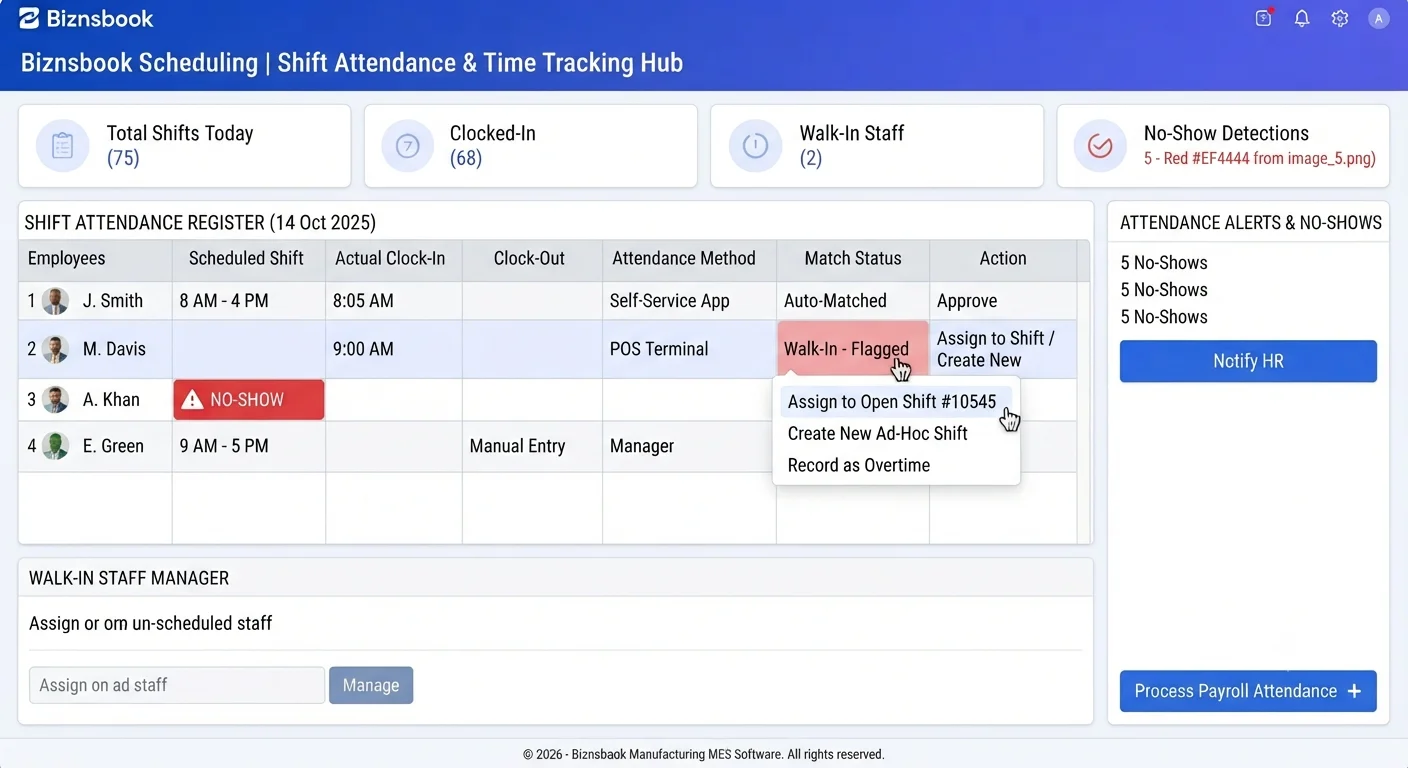
Attendance drift when clock data sits outside the roster
Teams that track time in a separate app from the schedule cannot tell whether someone was late, on a walk-in, or simply not scheduled. Payroll and labour analytics then guess at variances.
POS-only tracking without schedule context makes it hard to compare planned versus actual hours by role or location. Managers lose the link between published roster and real coverage.
No-shows discovered manually hours into a shift waste labour budget and customer service. Without automatic flagging, escalation depends on someone noticing an empty station.
Why this happens
- Clock-in tools are not enabled for managers, employees, or POS as needed.
- Scheduled shifts are published after staff already rely on informal times.
- Walk-in attendance is not distinguished from matched shift attendance in review.
- No-show job alerts are not monitored in the attendance queue.
Biznsbook addresses this through Clock in/out, shift matching, no-show detection when Scheduling is licensed — positions, templates, and the drag-and-drop builder connect to attendance verification, analytics, GL posting, and optional Restaurant, Manufacturing, and POS integrations on one database.
Finance teams lose days each month reconciling versions that should never have diverged. Naming Biznsbook screens as the system of record — and closing periods when agreed — prevents silent edits that auditors flag immediately.
Step-by-step: Track Shift Attendance
Built for schedulers, operations managers, and finance leads running shift rosters, attendance, swaps, and labour cost controls in Biznsbook Scheduling.
- Enable clock paths in settings. Turn on manager attendance entry, employee self-service, and optional POS clock-in tied to cashier session open and close.
- Publish schedules before the period starts. Give employees a published roster so auto-match can link clock-ins to the correct shift window.
- Capture clock-in and clock-out. Use Labour Scheduling → Attendance for manager entry, My Attendance for self-service, or POS sessions when enabled.
- Review auto-match results. Confirm clock-ins linked to schedule shifts; walk-ins remain valid when no shift falls within the two-hour match window.
- Monitor no-show flags. Review shifts flagged NoShow when no attendance exists 30+ minutes after scheduled start; respond with swap or call-in coverage.
- Export timesheets when needed. Use Excel timesheet export from attendance views for union or external audit requests alongside in-system verification.
- Feed verified records forward. Move verified attendance to cost posting or overtime claim generation — unverified rows stay out of financial output.
Review results after the first full weekly cycle. Adjust roles, mappings, or approvals where the same exception repeats.
Screen-level flows live in the Help Center (tax setup, expense claims, sale invoices). This guide focuses on finance process; help articles cover navigation.
Common mistakes to avoid
- Mistake 1: Clock-in tools are not enabled for managers, employees, or POS as needed. Repeating this each month usually shows up first in attendance verification queues or labour cost posting previews.
- Mistake 2: Scheduled shifts are published after staff already rely on informal times. Repeating this each month usually shows up first in attendance verification queues or labour cost posting previews.
- Mistake 3: Walk-in attendance is not distinguished from matched shift attendance in review. Repeating this each month usually shows up first in attendance verification queues or labour cost posting previews.
- Mistake 4: No-show job alerts are not monitored in the attendance queue. Repeating this each month usually shows up first in attendance verification queues or labour cost posting previews.
Track recurring exceptions in month-end notes; each should map to a control above.
Best practices that hold up as you scale
- Enable clock paths in settings — Turn on manager attendance entry, employee self-service, and optional POS clock-in tied to cashier session open and close.
- Publish schedules before the period starts — Give employees a published roster so auto-match can link clock-ins to the correct shift window.
- Capture clock-in and clock-out — Use Labour Scheduling → Attendance for manager entry, My Attendance for self-service, or POS sessions when enabled.
- Review auto-match results — Confirm clock-ins linked to schedule shifts; walk-ins remain valid when no shift falls within the two-hour match window.
- Monitor no-show flags — Review shifts flagged NoShow when no attendance exists 30+ minutes after scheduled start; respond with swap or call-in coverage.
Teams that complete setup before the first publish, verify attendance before cost posting, and review overtime reports mid-week avoid the surprise labour variances that show up only at month-end.
How Biznsbook supports this workflow
Clock in/out is documented in Biznsbook Scheduling capabilities. Use it as part of a controlled finance process — posting, review, and period close — not as an isolated export. When Sales, Purchase, Inventory, Taxation, Expense, or Finance Management modules are enabled, related documents can post through the central accounting posting service with double-entry validation.
shift matching is documented in Biznsbook Scheduling capabilities. Use it as part of a controlled finance process — posting, review, and period close — not as an isolated export. When Sales, Purchase, Inventory, Taxation, Expense, or Finance Management modules are enabled, related documents can post through the central accounting posting service with double-entry validation.
no-show detection is documented in Biznsbook Scheduling capabilities. Use it as part of a controlled finance process — posting, review, and period close — not as an isolated export. When Sales, Purchase, Inventory, Taxation, Expense, or Finance Management modules are enabled, related documents can post through the central accounting posting service with double-entry validation.
Scheduling permissions separate view, positions, settings, schedule management, attendance, swap approval, reporting, and cost posting. HR Management enhances employee and leave data but is not required to start.
Suggested implementation timeline
- Week 1: Document current process gaps and configure Clock in/out with finance owner sign-off.
- Weeks 2–3: Pilot on one month or one entity; post all test transactions through Biznsbook; freeze parallel spreadsheet journals.
- Week 4: Run first trial balance or report tie-out; fix mapping and permission issues.
- Month 2–3: Roll out to full team; add approvals and period close cadence from this guide.
- Ongoing: Monthly review using daily attendance review and leadership dashboard.
Metrics to track monthly
- Scheduled vs actual hours variance
- Labour cost % of revenue (when revenue data exists)
- Shifts missing cost estimate at publish
- Open shifts and pending swap count
- Unverified attendance rows before posting
Start with three metrics; trend direction matters more than a single point-in-time snapshot.
Spreadsheet / manual books vs integrated ERP
Compare typical manual finance work with Biznsbook Clock in/out and related capabilities.
| Capability | Manual / Spreadsheet | Biznsbook |
|---|---|---|
| Clock capture | ❌ Paper sign-in | ✅ Manager, self-service, or POS |
| Shift link | ❌ Manual reconciliation | ✅ Auto-match within 2-hour window |
| Walk-ins | ❌ Off-system hours | ✅ Recorded without linked shift |
| No-shows | ❌ Manager discovery | ✅ Automatic flag after 30 minutes |
| Overtime calc | ❌ Spreadsheet rules | ✅ Paid hours vs daily threshold |
| Schedule context | ❌ Separate tool | ✅ Same database as published roster |
Daily attendance review
Each morning, clear no-show flags, open unmatched walk-ins, and pending verification rows before approving swaps or posting costs for the prior day.
Document this in your finance SOP and revisit each quarter as transaction volume or entity structure changes.
Frequently asked questions
Can one employee have two open clock-ins?
No. Clock-in rejects a second concurrent open attendance record for the same employee.
How does POS clock-in work?
Opening or closing a cashier session can trigger clock-in or clock-out through non-fatal hooks on CashierSession — session open always succeeds even if the hook fails.
Does POS match by terminal location?
Not today. POS clock-in matches on employee and time window, not terminal-to-location mapping.
Where do employees clock in themselves?
My Attendance provides one-tap clock in/out with today's shift context when they have View Own Schedule access.
How this differs by industry
Retail
Front-of-house teams can combine POS session clock-in with published floor shifts so Z-report labour summaries align with scheduled coverage.
Wholesale & distribution
Warehouse leads can clock teams in from Attendance during peak inbound windows while walk-ins capture extra pickers not on the original roster.
Manufacturing
Shop-floor supervisors can verify matched operator attendance against workstation-linked locations before releasing the next work order wave.