How to Create a Field Service Job
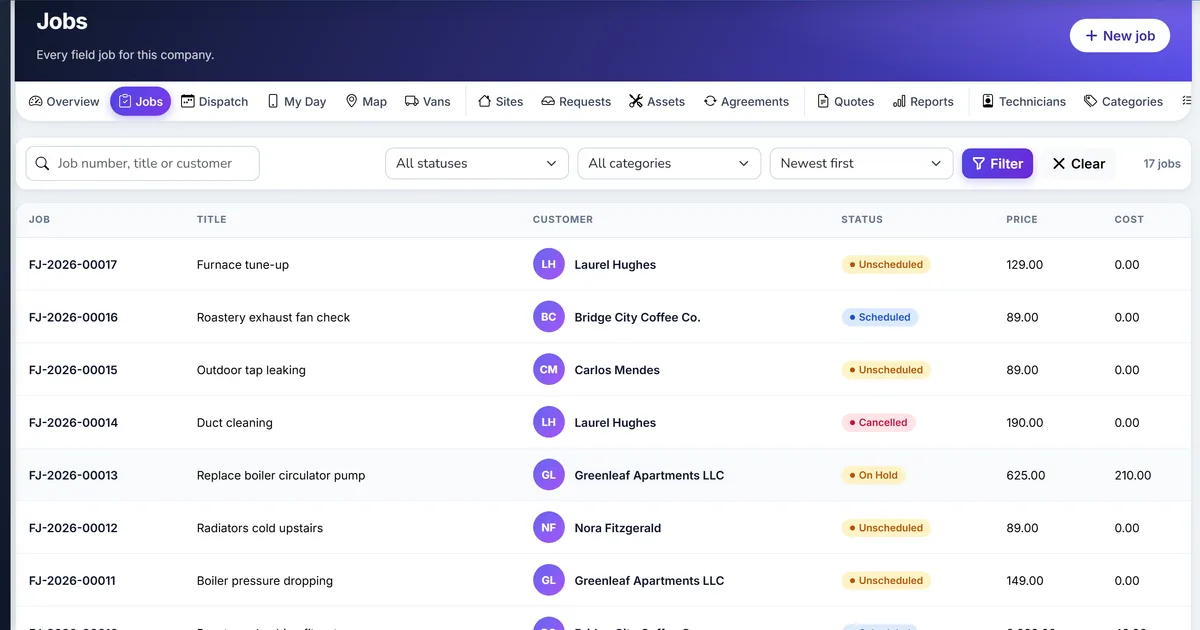
The job starts as a name in a message
A call gives you a person, a street, and a problem. If the person is typed again inside the job system, the invoice and the party ledger no longer match.
A party has one address. A landlord, a second shop, and a head office do not fit on that one line, and there is no pin for the map.
Someone marks the job scheduled before anyone is booked. The board and the home page then disagree about what still needs a technician.
Why this happens
- The customer is created again instead of using the party you already keep.
- The site is skipped, so the visit has nowhere to store a pin or a contact.
- The bill-to party is left as the site customer when a landlord or head office should be billed.
- Status is typed by hand instead of being read from the visits and the invoice.
Biznsbook addresses this through Customer parties and sites, job numbers, derived job status when Field Service is licensed. Customers are parties you already keep. The van is a warehouse. The invoice is one sale invoice for the job.
A second dispatcher, a van, and a deposit are where a private list drifts. Making Biznsbook the place that books the visit, issues the part, and raises the one invoice keeps those three on the same job.
Step-by-step: Create a Field Service Job
Built for owners and dispatchers who send technicians to a customer site in Biznsbook Field Service.
- License Field Service and open the module. Field Service does not require another module. Inventory, Accounting, Sales, and Labour Scheduling add stock, journals, invoices, and published shifts when those modules are also licensed. Company admins and the Field Service Manager can open settings.
- Use an existing party as the customer. Create or import the customer under Master Data, then Parties. Field Service does not keep a second customer list. The bill-to party can be a different party, such as a landlord or a head office.
- Add the site. A site is a service address for that party. One site per party is primary. Extra sites are allowed. You can store a manual latitude and longitude. Automatic lookup runs only when the geocoding provider is Nominatim. The default is no lookup.
- Create the job. Pick the customer and a site that belongs to them. Set the title and the priority: low, normal, high, or emergency. An emergency job uses the emergency rate multiplier from settings, default 1.5. The number uses the company prefix.
- Choose a category or a template. A category can set a colour, a duration, a labour rate, required skill tags, a checklist, a safety form, and respond-by and complete-by minutes. A job template copies estimate lines and can point at a checklist. The checklist on the job is a copy. Editing the template later does not change jobs already created.
- Read the status. Quote until a quote is accepted, when the job was opened as a quote. Unscheduled when nobody is booked. Scheduled when a visit is booked. In progress when a technician is on the way, on site, or paused. On hold when you hold the job. Completed when every live visit is finished and at least one was completed. Invoiced after the sale invoice. Paid when that invoice is settled. Cancelled when you cancel it. Cancelled, invoiced, and paid do not move backwards.
- Add a note if the office needs it. Notes are internal or customer-visible. Cancelling the job releases reserved quote materials. The job is kept. It is soft-deleted only if you remove it from the list.
Review results after the first full weekly cycle. Adjust roles, mappings, or approvals where the same exception repeats.
Screen names in this guide match Field Service in the product: Home, Jobs, Dispatch, My day, Quotes, Agreements, and Settings.
Common mistakes to avoid
- Mistake 1: The customer is created again instead of using the party you already keep. Repeating this each month usually shows up first in double-booked visits, van counts, or a second invoice.
- Mistake 2: The site is skipped, so the visit has nowhere to store a pin or a contact. Repeating this each month usually shows up first in double-booked visits, van counts, or a second invoice.
- Mistake 3: The bill-to party is left as the site customer when a landlord or head office should be billed. Repeating this each month usually shows up first in double-booked visits, van counts, or a second invoice.
- Mistake 4: Status is typed by hand instead of being read from the visits and the invoice. Repeating this each month usually shows up first in double-booked visits, van counts, or a second invoice.
Note each recurring gap in the weekly review. Each one should map to a step in this guide.
Best practices that hold up as you scale
- License Field Service and open the module — Field Service does not require another module.
- Use an existing party as the customer — Create or import the customer under Master Data, then Parties.
- Add the site — A site is a service address for that party.
- Create the job — Pick the customer and a site that belongs to them.
- Choose a category or a template — A category can set a colour, a duration, a labour rate, required skill tags, a checklist, a safety form, and respond-by and complete-by minutes.
Teams that schedule on the board, issue parts from the van before they invoice, and refuse a second invoice keep the visit and the ledger on the same job.
How Biznsbook supports this workflow
Customer parties and sites is part of Biznsbook Field Service for companies that send a person to a customer site. The customer is a party you already keep, the address you visit is a site, and the visit sits on a job. Parts move through a van warehouse. The bill is one sale invoice, and a deposit taken first is an advance on that same job. Technicians quote, invoice, or collect only when settings allow it.
job numbers is part of Biznsbook Field Service for companies that send a person to a customer site. The customer is a party you already keep, the address you visit is a site, and the visit sits on a job. Parts move through a van warehouse. The bill is one sale invoice, and a deposit taken first is an advance on that same job. Technicians quote, invoice, or collect only when settings allow it.
derived job status is part of Biznsbook Field Service for companies that send a person to a customer site. The customer is a party you already keep, the address you visit is a site, and the visit sits on a job. Parts move through a van warehouse. The bill is one sale invoice, and a deposit taken first is an advance on that same job. Technicians quote, invoice, or collect only when settings allow it.
Technicians do not quote, invoice, or collect unless those settings are on. Labour cost is for job costing and does not post a wage journal. Email sends through the company’s outbound email and SMS through the company’s own Twilio connection.
Suggested implementation timeline
- Week 1: License Field Service, add sites on the parties you already keep, and try Customer parties and sites on one real job.
- Week 2: Create a van warehouse, transfer the stock that is in the van, and issue one part on a visit.
- Week 3: Schedule on the board, including one forced conflict, and complete a visit with the checklist rules you actually want.
- Week 4: Create the one sale invoice, apply a deposit if you took one, and turn the public page on if customers should request visits.
- Ongoing: Weekly review of unscheduled jobs, overdue complete-by times, and van items under minimum, using what the home page counts.
Sites, contacts, and the pin
A party has one address and no latitude or longitude. Field Service stores sites so a customer can have a shop, a home, and a landlord address without a second customer record. One non-deleted site is primary. Contacts live on the site, and a contact can opt out of SMS.
A manual pin is enough for the map and for the arrival distance. Distance is stored when the site has a pin. It does not block completion. Nominatim is the only automatic lookup, and only when that provider is configured.
Categories, templates, and numbers
Settings hold the numbering prefixes, the default visit length, the travel buffer, the labour billing step, the labour item, the call-out item, the default warehouse, and the rules for signature, checklist, photo, and safety form. Those rules apply when the technician finishes, not when you create the job.
The job number and the quote number come from the company sequence. A new company shows FJ-00001 and a quote prefix of FQ-. Changing the template after the job exists does not rewrite the checklist copy already on the job.
Metrics to track monthly
- Jobs still unscheduled past the attention window
- Jobs past their complete-by time
- Van items below the minimum you set
- Visits forced past a conflict
- Jobs completed and not yet invoiced
Start with three metrics; trend direction matters more than a single point-in-time snapshot.
Spreadsheet or paper day sheet vs Biznsbook Field Service
Compare a typical list of jobs with Biznsbook Customer parties and sites and the rest of the field job.
| Capability | Manual / Spreadsheet | Biznsbook |
|---|---|---|
| Who the customer is | ❌ A name typed on the job | ✅ An existing party, with a bill-to party when it differs |
| Where the work is | ❌ One address on the party | ✅ A site, one of them primary, with an optional pin |
| Job number | ❌ Whatever was typed | ✅ Company prefix, default FJ-00001 |
| Status | ❌ A label someone picks | ✅ Derived from visits, hold, invoice, and payment |
| Checklist | ❌ A shared template that changes old jobs | ✅ A copy on the job |
| Cancel | ❌ The row disappears | ✅ The job is kept and reserved materials are released |
What the home page counts
The home page shows jobs that are unscheduled, scheduled today, on site, and overdue against their complete-by time. Attention Center, when Field Service is licensed, also counts jobs left unscheduled longer than the setting, default 3 days, jobs past complete-by, and van items below the minimum you set.
Write this into the way the office hands work to technicians, and revisit it when you add a van or a second dispatcher.
Frequently asked questions
Can the bill-to party differ from the site customer?
Yes. The bill-to party can be a landlord or a head office. The site still belongs to the customer the visit is for.
Does creating a job look up the address on a map?
Only when FieldService:Geocoding:Provider is Nominatim. The default is no lookup. You can type a latitude and longitude yourself. Other providers are not called.
What does an emergency priority do?
It uses the emergency rate multiplier from settings. The default multiplier is 1.5.
Why did the status not stay on scheduled?
Status follows the work. It becomes in progress when a technician is on the way, on site, or paused, and it does not move backwards from invoiced, paid, or cancelled.
How this differs by industry
Retail
An appliance shop that also repairs machines in the home can keep the customer as a party, the kitchen as a site, and the van as the warehouse the part comes out of.
Wholesale & distribution
A parts distributor that sends a technician with the delivery can issue the part from the van and still raise one sale invoice for that job.
Manufacturing
A plant that calls an outside technician can be the bill-to party while the site is the building the work was done in.