How to Let Employees Submit Their Own Expense Claims
Why expense claims pile up on finance
In many companies employees cannot enter their own claims. They hand receipts to an office manager, send photos by chat, or fill in a spreadsheet that someone in finance retypes. Finance becomes a data-entry team for other people's spending, and employees have no idea where their money is.
Giving every employee full access to the expense module solves the typing problem but creates others. Staff can see other people's claims, settings and reports they should not, and the access has to be managed for everyone who ever buys a taxi ride.
Self-service sits between the two. Each employee gets a simple screen for their own claims: create, attach the receipt, submit and track. Finance keeps approval, payment, settings and reporting in the expense module, and nobody needs extra permissions.
Why this happens
- Employees hand receipts to finance to type in.
- Employees cannot see whether a claim is approved or paid.
- Expense module access is given to everyone, exposing other people's claims.
- Claims arrive without the receipt or the right category.
Biznsbook addresses this through Self Service My Expenses, employee expense claims, claim status tracking, receipt photos from Self Service in the Expense Management module, which posts to the same general ledger as the rest of the ERP when Accounting is licensed.
Expense problems rarely come from one big mistake. They come from many small claims handled slightly differently each time. A single record per claim, with every decision and payment attached to it, removes that variation.
Step-by-step: Let Employees Submit Their Own Expense Claims
Written for finance teams and office managers running staff spend — employees file claims, approvers sign them off, and finance pays and posts them, all inside the Biznsbook Expense Management module.
- Check the prerequisites. The company needs Employee Self Service and Expense Management. Each employee needs a linked user on their employee record.
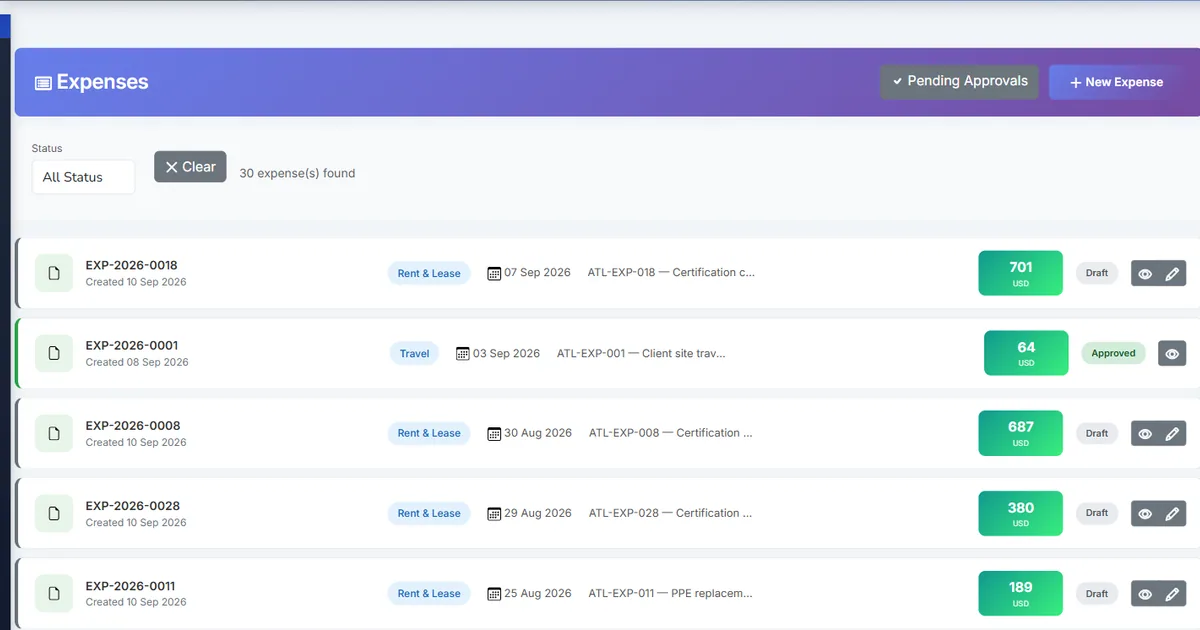
- Open My Expenses. Employees open Self Service → My Expenses. It shows their claims with totals for drafts, awaiting approval, approved but not yet repaid, and repaid this year.
- Create a claim. New claim takes the date, an optional vendor, a description and one or more items with a category and the amount from the receipt, tax included. A receipt photo or PDF can be attached.
- Or start from a receipt. Take a photo of a receipt or upload several. Each one is read, the employee checks it and chooses a category, and a draft claim is created.
- Add mileage. For a mileage category the employee picks the vehicle and enters the distance; the amount is calculated from the company rate.
- Submit and explain. Submit sends the claim through the normal approval workflow. If a policy check needs an explanation, the employee writes it on the claim.
- Follow it to repayment. The claim shows its approval steps, comments, receipts and status until it is repaid. Drafts and rejected claims can be edited or withdrawn.
Review results after the first full monthly cycle. Adjust roles, mappings, or approvals where the same exception repeats.
Inside Biznsbook, the Expense module has its own step-by-step Guide (Expenses → Guide) covering claims, mileage, receipt scanning, approvals, advances, budgets and payments, and employees have Self Service → My Expenses. This article focuses on the business process behind those screens.
Common mistakes to avoid
- Mistake 1: Employees hand receipts to finance to type in. Repeating this each month usually shows up first in an expense report finance cannot reconcile to the ledger.
- Mistake 2: Employees cannot see whether a claim is approved or paid. Repeating this each month usually shows up first in an expense report finance cannot reconcile to the ledger.
- Mistake 3: Expense module access is given to everyone, exposing other people's claims. Repeating this each month usually shows up first in an expense report finance cannot reconcile to the ledger.
- Mistake 4: Claims arrive without the receipt or the right category. Repeating this each month usually shows up first in an expense report finance cannot reconcile to the ledger.
Each of these shows up as a difference between the expense reports and the ledger. Fix the process on the claim record rather than with manual journals.
Best practices that hold up as you scale
- Check the prerequisites — The company needs Employee Self Service and Expense Management.
- Open My Expenses — Employees open Self Service → My Expenses.
- Create a claim — New claim takes the date, an optional vendor, a description and one or more items with a category and the amount from the receipt, tax included.
- Or start from a receipt — Take a photo of a receipt or upload several.
- Add mileage — For a mileage category the employee picks the vehicle and enters the distance; the amount is calculated from the company rate.
Keep the process inside the claim record. Every approval, payment and settlement recorded on the claim is one less manual journal to explain at month-end.
How Biznsbook supports this workflow
Self Service My Expenses is part of Biznsbook Expense Management and follows the claim through the same record — submission, approval, payment and posting — rather than living in a separate spreadsheet. With Accounting licensed, each journal is posted as a balanced double entry under its own reference, so a payout or reversal can never be mistaken for the original expense.
employee expense claims is part of Biznsbook Expense Management and follows the claim through the same record — submission, approval, payment and posting — rather than living in a separate spreadsheet. With Accounting licensed, each journal is posted as a balanced double entry under its own reference, so a payout or reversal can never be mistaken for the original expense.
claim status tracking is part of Biznsbook Expense Management and follows the claim through the same record — submission, approval, payment and posting — rather than living in a separate spreadsheet. With Accounting licensed, each journal is posted as a balanced double entry under its own reference, so a payout or reversal can never be mistaken for the original expense.
receipt photos from Self Service is part of Biznsbook Expense Management and follows the claim through the same record — submission, approval, payment and posting — rather than living in a separate spreadsheet. With Accounting licensed, each journal is posted as a balanced double entry under its own reference, so a payout or reversal can never be mistaken for the original expense.
Access is permission-based: Expense Manager holds approve, categories, budgets, settings and reports; Expense Approver can approve and view reports. Every company user can still file their own claims and advance requests, and company admins see everything.
Suggested implementation timeline
- Week 1: Set up categories with GL accounts and the Expense Settings default accounts, then configure Self Service My Expenses.
- Week 2: Pilot with one team: file real claims, approve them and record payments in Biznsbook only.
- Week 3: Check the postings: approved claims, employee payable and advances should match the expense reports.
- Month 2: Roll out to all staff, assign Expense Manager and Expense Approver roles, and retire the spreadsheet.
- Ongoing: Monthly review using rolling out self-service claims.
Metrics to track monthly
- Approved claims waiting for payment, and their total
- Average days from submission to final approval
- Outstanding employee advances past their expected settlement date
- Spend against budget by category for the month
Start with three metrics; trend direction matters more than a single point-in-time snapshot.
Spreadsheets and email vs Biznsbook Expense Management
Compare a typical email-and-spreadsheet expense process with Biznsbook Self Service My Expenses and the related Expense capabilities.
| Capability | Manual / Spreadsheet | Biznsbook |
|---|---|---|
| Who enters claims | ❌ Finance retypes receipts | ✅ Employees enter their own |
| Access needed | ❌ Full expense module access | ✅ Self Service only; no expense permissions |
| What employees see | ❌ Everything, or nothing | ✅ Only claims they raised or claim for |
| Claim status | ❌ Ask finance | ✅ Approval steps and repayment on the claim |
| Receipts | ❌ Handed over separately | ✅ Photo or file attached to the claim |
| Policy questions | ❌ Resolved by email | ✅ Explanation written on the claim |
Rolling out self-service claims
Link each employee to their user account first; anyone without a link sees a message instead of their claims. Set up categories, default tax groups and mileage rates before launch, because employees choose categories but not tax. Then announce My Expenses with a short note on receipts and mileage, and watch the awaiting-approval total in the first weeks to see whether approvers keep up.
Write the rule into your expense policy so employees, approvers and finance follow the same steps, and revisit it each quarter.
Frequently asked questions
What do employees need to use My Expenses?
The company needs Employee Self Service and Expense Management, and the employee record needs a linked user. My Expenses appears under Self Service when both are licensed.
Can employees see other people's claims?
No. My Expenses only shows claims the employee raised or is the claimant of. Approval, payment, settings and reports stay in the Expense module.
Are self-service claims reimbursable?
Yes. Claims from My Expenses are always reimbursable to the employee and in the company's base currency. Amounts are entered as on the receipt, tax included.
Can employees change a claim after submitting it?
Draft and rejected claims can be edited, resubmitted or withdrawn. A submitted claim is changed through the approval workflow, for example by being rejected back.
Can employees claim mileage and scan receipts?
Yes. Mileage items use the company's vehicle rates, and receipts can be photographed or uploaded several at a time to create draft claims.
Do employees need expense permissions?
No. Self Service access is enough. The claimant is always the employee's own record, so nobody can claim in someone else's name from Self Service.
How this differs by industry
Retail
Store staff who rarely use a computer can photograph a receipt on their phone from Self Service and see when the money is coming, without access to the store's expense reports.
Wholesale & distribution
Drivers and field reps submit fuel, tolls and mileage from Self Service on the road, and finance approves and pays them from the expense module.
Manufacturing
Shop-floor staff who already use Self Service for leave and payslips claim tools and travel in the same place, while plant finance keeps control of approvals.