How to Automate Restaurant Inventory Depletion
Manual stock issues fall behind real kitchen output
Kitchens that sell faster than stores post issues show inflated on-hand quantities. Purchasing delays reordering, par-level signals misfire, and COGS variance reports blame ingredients that were actually consumed but never recorded.
Manual depletion also breaks when modifiers and add-ons are involved. If only base recipes are deducted informally, linked add-on ingredients stay on the books while real usage climbs.
When failures are invisible, teams assume depletion is working until a physical count exposes large gaps. Without an audit log and reprocess path, recovery requires risky bulk adjustments.
Why this happens
- Auto-deplete on sale is left off or enabled before recipes are validated.
- Default depletion warehouse is missing or misaligned with kitchen stock.
- Failed depletions are not reviewed on the Failures screen.
- Staff still run parallel manual issues that duplicate or contradict sync results.
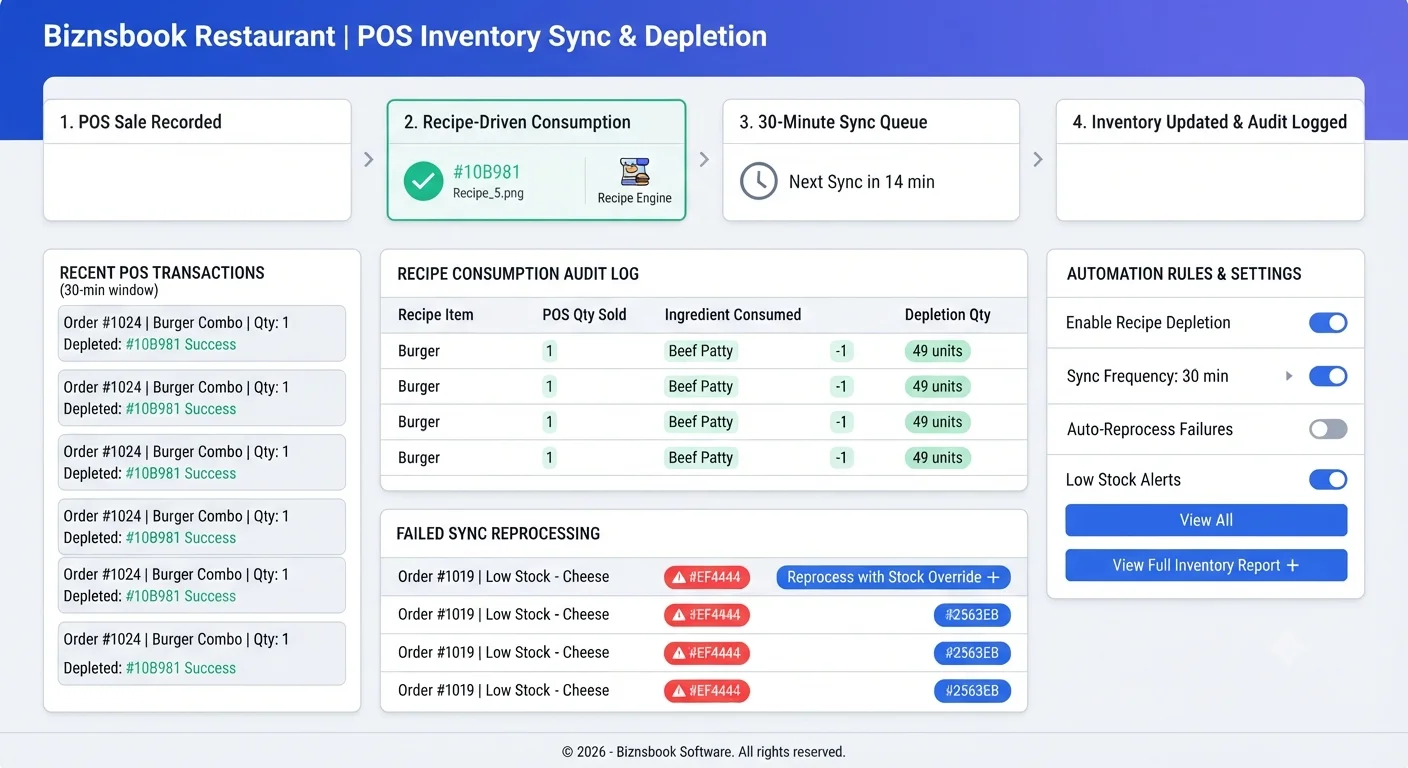
Biznsbook addresses this through Auto-deplete on sale, depletion log, failure reprocessing when Restaurant, Inventory, and POS are licensed — recipes pull live ingredient costs, POS sales drive theoretical COGS and optional auto-depletion, and purchasing workflows stay in the same ERP.
Finance teams lose days each month reconciling versions that should never have diverged. Naming Biznsbook screens as the system of record — and closing periods when agreed — prevents silent edits that auditors flag immediately.
Step-by-step: Automate Restaurant Inventory Depletion
Built for restaurant owners, kitchen managers, and operations leads running recipe-based food costing, POS-linked depletion, and back-of-house controls in Biznsbook.
- Complete and activate recipes first. Finish ingredient lines, waste %, and output menu items on Active recipes before switching automation on; settings show a clear warning to test first.
- Set default depletion warehouse. Choose the warehouse auto-depletion draws from in Restaurant settings, or rely on the sale line warehouse when configured.
- Enable Auto-deplete on sale. Turn on the toggle only when recipes and warehouse defaults are verified, since every posted POS sale will drive ingredient consumption.
- Monitor Depletion History. Review the log for Completed, Skipped, Failed, and Pending runs with sale, recipe, timestamp, and error detail.
- Clear failures from the Failures view. Open failed rows — often missing warehouse or recipe gaps — fix the root cause, then Reprocess in one click without double-depleting.
- Watch dashboard depletion health. Use failed and stuck overdue-pending counts on the Restaurant dashboard and reprocess inline when alerts appear.
- Include modifier-linked items. Assign linked inventory items on modifier options so add-ons that consume real product deplete on the next sync after sale.
Review results after the first full weekly cycle. Adjust roles, mappings, or approvals where the same exception repeats.
Screen-level flows live in the Help Center. This guide focuses on the business process; help articles cover click-by-click navigation.
Common mistakes to avoid
- Mistake 1: Auto-deplete on sale is left off or enabled before recipes are validated. Repeating this each month usually shows up first in COGS variance reports or depletion failure logs.
- Mistake 2: Default depletion warehouse is missing or misaligned with kitchen stock. Repeating this each month usually shows up first in COGS variance reports or depletion failure logs.
- Mistake 3: Failed depletions are not reviewed on the Failures screen. Repeating this each month usually shows up first in COGS variance reports or depletion failure logs.
- Mistake 4: Staff still run parallel manual issues that duplicate or contradict sync results. Repeating this each month usually shows up first in COGS variance reports or depletion failure logs.
Track recurring exceptions in month-end notes; each should map to a control above.
Best practices that hold up as you scale
- Complete and activate recipes first — Finish ingredient lines, waste %, and output menu items on Active recipes before switching automation on; settings show a clear warning to test first.
- Set default depletion warehouse — Choose the warehouse auto-depletion draws from in Restaurant settings, or rely on the sale line warehouse when configured.
- Enable Auto-deplete on sale — Turn on the toggle only when recipes and warehouse defaults are verified, since every posted POS sale will drive ingredient consumption.
- Monitor Depletion History — Review the log for Completed, Skipped, Failed, and Pending runs with sale, recipe, timestamp, and error detail.
- Clear failures from the Failures view — Open failed rows — often missing warehouse or recipe gaps — fix the root cause, then Reprocess in one click without double-depleting.
Teams that activate recipes before enabling auto-deplete, review COGS variance weekly, and log waste at the point of discard avoid the month-end surprises that inflate food cost.
How Biznsbook supports this workflow
Auto-deplete on sale is documented in Biznsbook Restaurant capabilities. Use it as part of a controlled finance process — posting, review, and period close — not as an isolated export. When Sales, Purchase, Inventory, Taxation, Expense, or Finance Management modules are enabled, related documents can post through the central accounting posting service with double-entry validation.
depletion log is documented in Biznsbook Restaurant capabilities. Use it as part of a controlled finance process — posting, review, and period close — not as an isolated export. When Sales, Purchase, Inventory, Taxation, Expense, or Finance Management modules are enabled, related documents can post through the central accounting posting service with double-entry validation.
failure reprocessing is documented in Biznsbook Restaurant capabilities. Use it as part of a controlled finance process — posting, review, and period close — not as an isolated export. When Sales, Purchase, Inventory, Taxation, Expense, or Finance Management modules are enabled, related documents can post through the central accounting posting service with double-entry validation.
Restaurant permissions separate recipe management, waste logging, par levels, floor plans, KDS, reservations, and settings. Inventory and POS are prerequisites for depletion and costing.
Suggested implementation timeline
- Week 1: Document current process gaps and configure Auto-deplete on sale with finance owner sign-off.
- Weeks 2–3: Pilot on one month or one entity; post all test transactions through Biznsbook; freeze parallel spreadsheet journals.
- Week 4: Run first trial balance or report tie-out; fix mapping and permission issues.
- Month 2–3: Roll out to full team; add approvals and period close cadence from this guide.
- Ongoing: Monthly review using go-live checklist and leadership dashboard.
Metrics to track monthly
- Food cost % vs target (theoretical ÷ POS sales)
- COGS variance % by ingredient (red / amber / green)
- Failed or stuck sale depletions
- Today waste cost vs daily threshold
- Par level shortages and unread supplier price alerts
Start with three metrics; trend direction matters more than a single point-in-time snapshot.
Spreadsheet / manual books vs integrated ERP
Compare typical manual finance work with Biznsbook Auto-deplete on sale and related capabilities.
| Capability | Manual / Spreadsheet | Biznsbook |
|---|---|---|
| Trigger | ❌ End-of-shift manual issues | ✅ POS sale recipe-driven sync |
| Frequency | ❌ When someone remembers | ✅ Background run every 30 minutes |
| Waste handling | ❌ Often omitted | ✅ Ingredient waste % in calculation |
| Audit trail | ❌ Paper or none | ✅ Depletion History with statuses |
| Failure recovery | ❌ Bulk stock guess | ✅ One-click safe Reprocess |
| Add-on stock | ❌ Frequently missed | ✅ Linked modifier item depletion |
Go-live checklist
Before enabling auto-deplete: every sold menu item has an Active recipe, default depletion warehouse is set, test sales are reviewed in Depletion History, and one manager owns daily Failures review.
Document this in your finance SOP and revisit each quarter as transaction volume or entity structure changes.
Frequently asked questions
How often does auto-depletion run?
A background sync processes recent sales every 30 minutes for companies with the setting enabled and a valid Restaurant licence.
Can reprocessing double-deplete a sale?
No. Reprocess is designed to rerun safely without posting duplicate consumption for the same sale.
What if no warehouse is configured?
Depletion can fail; the Failures view lists the error so you can set default depletion warehouse and reprocess.
Does this work with modifiers?
Yes. Modifier options with a linked inventory item generate an extra depletion line on the next sync after the sale posts.
How this differs by industry
Retail
Fast-casual stores with high ticket volume rely on automatic depletion so lunch rushes do not leave inventory counts wrong until close.
Wholesale & distribution
Commissary units shipping finished components still deplete raw ingredients at each production POS or internal sale point tied to recipes.
Manufacturing
Franchise field teams can monitor failed depletion counts per location from the dashboard before variances spread across the group.