How to Manage Restaurant Table Reservations
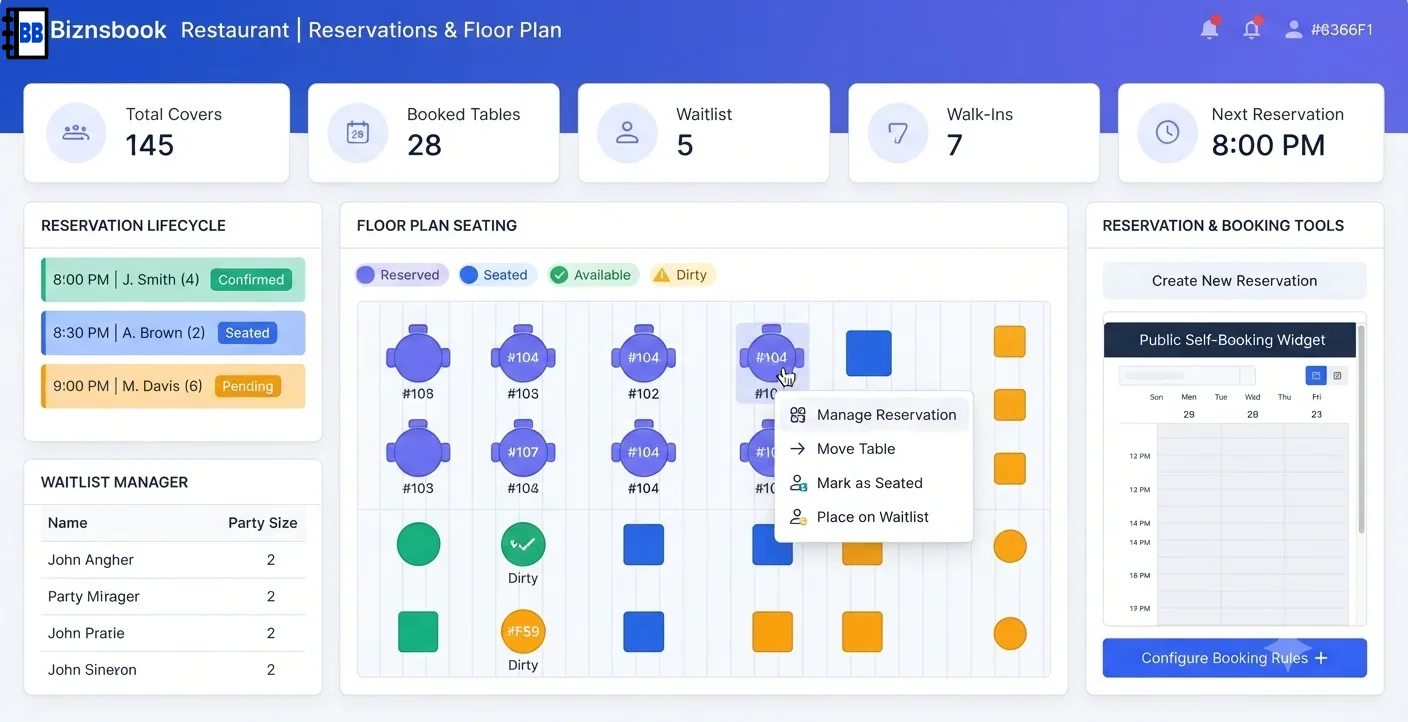
Reservation chaos costs covers and guest trust
Hosts juggling phone bookings, walk-ins, and no-shows without a single day view double-book tables or leave seats empty during peak windows. Guests receive no confirmation code and cannot cancel online when plans change.
When seating does not tie to the live floor plan, POS and dining room status disagree. A reservation marked seated manually does not show Occupied on Live View, and servers open the wrong table.
Walk-in queues managed by memory feel arbitrary. Without estimated wait from real kitchen turn-times, guests leave before being seated while blue Reserved tables sit unused.
Why this happens
- Reservations are taken outside the Restaurant Reservations screen.
- Floor plans are not configured, so seating cannot open a real table session.
- Hosts ignore Reserved (blue) status before seating walk-ins.
- Waitlist parties are not renumbered after seat or remove actions.
Biznsbook addresses this through Reservations lifecycle, public self-booking, walk-in waitlist when Restaurant, Inventory, and POS are licensed — recipes pull live ingredient costs, POS sales drive theoretical COGS and optional auto-depletion, and purchasing workflows stay in the same ERP.
Finance teams lose days each month reconciling versions that should never have diverged. Naming Biznsbook screens as the system of record — and closing periods when agreed — prevents silent edits that auditors flag immediately.
Step-by-step: Manage Restaurant Table Reservations
Built for restaurant owners, kitchen managers, and operations leads running recipe-based food costing, POS-linked depletion, and back-of-house controls in Biznsbook.
- Build floor plans for table objects. Configure dining rooms with table number, capacity, and layout so seating a reservation uses the same OpenTable flow as POS.
- Take and confirm bookings. Create reservations with date, time, party size, optional preferred table, and requests; move Pending to Confirmed with optional table assignment.
- Watch Reserved on Live View. Upcoming Confirmed or Pending bookings within about two hours show Reserved (blue) when no session is open, with an upcoming-reservation badge.
- Seat guests into live table sessions. Use Seat to open a real table session on the floor plan so Live View shows Occupied immediately with covers and session timing.
- Complete visits for loyalty. Mark Completed after service so the guest earns loyalty points on their Parties profile without duplicate visit counters.
- Enable public self-booking. Share /order/{slug}/reserve so guests pick available slots by date and party size, receive a confirmation code, and cancel online without login.
- Run the walk-in waitlist. Add walk-ins with party size; Biznsbook assigns queue position and estimated wait from KDS turn-time analytics and renumbers on seat or remove.
Review results after the first full weekly cycle. Adjust roles, mappings, or approvals where the same exception repeats.
Screen-level flows live in the Help Center. This guide focuses on the business process; help articles cover click-by-click navigation.
Common mistakes to avoid
- Mistake 1: Reservations are taken outside the Restaurant Reservations screen. Repeating this each month usually shows up first in COGS variance reports or depletion failure logs.
- Mistake 2: Floor plans are not configured, so seating cannot open a real table session. Repeating this each month usually shows up first in COGS variance reports or depletion failure logs.
- Mistake 3: Hosts ignore Reserved (blue) status before seating walk-ins. Repeating this each month usually shows up first in COGS variance reports or depletion failure logs.
- Mistake 4: Waitlist parties are not renumbered after seat or remove actions. Repeating this each month usually shows up first in COGS variance reports or depletion failure logs.
Track recurring exceptions in month-end notes; each should map to a control above.
Best practices that hold up as you scale
- Build floor plans for table objects — Configure dining rooms with table number, capacity, and layout so seating a reservation uses the same OpenTable flow as POS.
- Take and confirm bookings — Create reservations with date, time, party size, optional preferred table, and requests; move Pending to Confirmed with optional table assignment.
- Watch Reserved on Live View — Upcoming Confirmed or Pending bookings within about two hours show Reserved (blue) when no session is open, with an upcoming-reservation badge.
- Seat guests into live table sessions — Use Seat to open a real table session on the floor plan so Live View shows Occupied immediately with covers and session timing.
- Complete visits for loyalty — Mark Completed after service so the guest earns loyalty points on their Parties profile without duplicate visit counters.
Teams that activate recipes before enabling auto-deplete, review COGS variance weekly, and log waste at the point of discard avoid the month-end surprises that inflate food cost.
How Biznsbook supports this workflow
Reservations lifecycle is documented in Biznsbook Restaurant capabilities. Use it as part of a controlled finance process — posting, review, and period close — not as an isolated export. When Sales, Purchase, Inventory, Taxation, Expense, or Finance Management modules are enabled, related documents can post through the central accounting posting service with double-entry validation.
public self-booking is documented in Biznsbook Restaurant capabilities. Use it as part of a controlled finance process — posting, review, and period close — not as an isolated export. When Sales, Purchase, Inventory, Taxation, Expense, or Finance Management modules are enabled, related documents can post through the central accounting posting service with double-entry validation.
walk-in waitlist is documented in Biznsbook Restaurant capabilities. Use it as part of a controlled finance process — posting, review, and period close — not as an isolated export. When Sales, Purchase, Inventory, Taxation, Expense, or Finance Management modules are enabled, related documents can post through the central accounting posting service with double-entry validation.
Restaurant permissions separate recipe management, waste logging, par levels, floor plans, KDS, reservations, and settings. Inventory and POS are prerequisites for depletion and costing.
Suggested implementation timeline
- Week 1: Document current process gaps and configure Reservations lifecycle with finance owner sign-off.
- Weeks 2–3: Pilot on one month or one entity; post all test transactions through Biznsbook; freeze parallel spreadsheet journals.
- Week 4: Run first trial balance or report tie-out; fix mapping and permission issues.
- Month 2–3: Roll out to full team; add approvals and period close cadence from this guide.
- Ongoing: Monthly review using door shift routine and leadership dashboard.
Metrics to track monthly
- Food cost % vs target (theoretical ÷ POS sales)
- COGS variance % by ingredient (red / amber / green)
- Failed or stuck sale depletions
- Today waste cost vs daily threshold
- Par level shortages and unread supplier price alerts
Start with three metrics; trend direction matters more than a single point-in-time snapshot.
Spreadsheet / manual books vs integrated ERP
Compare typical manual finance work with Biznsbook Reservations lifecycle and related capabilities.
| Capability | Manual / Spreadsheet | Biznsbook |
|---|---|---|
| Booking intake | ❌ Phone and paper | ✅ Staff screen plus public self-booking |
| Upcoming holds | ❌ Verbal host notes | ✅ Reserved (blue) on Live View |
| Seating | ❌ Manual status note | ✅ Opens real floor-plan table session |
| Walk-ins | ❌ Guess wait times | ✅ Queue position and estimated wait |
| Guest records | ❌ Duplicate contacts | ✅ Parties with loyalty and history |
| Service handoff | ❌ Verbal to servers | ✅ Live floor plan and POS linkage |
Door shift routine
Open Reservations and Live View together each service. Seat from the booking list, not memory, and clear waitlist renumbering after every seat so quoted waits stay credible.
Document this in your finance SOP and revisit each quarter as transaction volume or entity structure changes.
Frequently asked questions
Do guests get confirmation details?
Each booking receives a 6-character confirmation code with optional confirmation email and a reminder email the morning before.
How does seating connect to POS?
Seating uses the same floor-plan engine as POS table service, so the table shows Occupied on Live View with session details.
Why is an empty table blue?
Reserved means an upcoming Confirmed or Pending booking is assigned within about two hours and no session is open yet.
What permission manages reservations?
Viewing needs Restaurant.View; creating bookings and driving lifecycle needs Restaurant.ManageReservations, seeded to Company Admin on licensing.
How this differs by industry
Retail
Fast-casual dine-in locations promote self-booking for weekend peaks while hosts run a short waitlist when the floor fills.
Wholesale & distribution
Multi-unit operators compare 30-day no-show rates on the dashboard and tighten confirmation emails at high-risk locations.
Manufacturing
Franchise hosts use identical lifecycle steps — Confirm, Seat, Complete — so guest experience and loyalty accrual stay consistent brand-wide.