How to Set Up Restaurant Online Ordering
Phone orders and third-party apps fragment kitchen flow
Restaurants taking orders by phone or unofficial channels duplicate entry at the till, delay kitchen firing, and split reporting between channels. Guests lack status visibility and call back during rush.
When online menus do not reuse POS modifiers, kitchen tickets show incomplete builds. Required choices enforced at the counter are missed on web orders, increasing remakes and guest complaints.
Settling online orders outside the main sales ledger hides revenue and average order value. Finance and operations then cannot compare counter, dine-in QR, and takeaway performance in one place.
Why this happens
- Online ordering is paused or slug is unset so the public menu never goes live.
- Modifier groups are not assigned to items sold on the public menu.
- Table QR codes are not printed, so dine-in guests use generic takeaway flow.
- Staff do not advance Kanban statuses or convert orders to sale bills at payment.
Biznsbook addresses this through Public menu link, QR-table ordering, staff Kanban board when Restaurant, Inventory, and POS are licensed — recipes pull live ingredient costs, POS sales drive theoretical COGS and optional auto-depletion, and purchasing workflows stay in the same ERP.
Finance teams lose days each month reconciling versions that should never have diverged. Naming Biznsbook screens as the system of record — and closing periods when agreed — prevents silent edits that auditors flag immediately.
Step-by-step: Set Up Restaurant Online Ordering
Built for restaurant owners, kitchen managers, and operations leads running recipe-based food costing, POS-linked depletion, and back-of-house controls in Biznsbook.
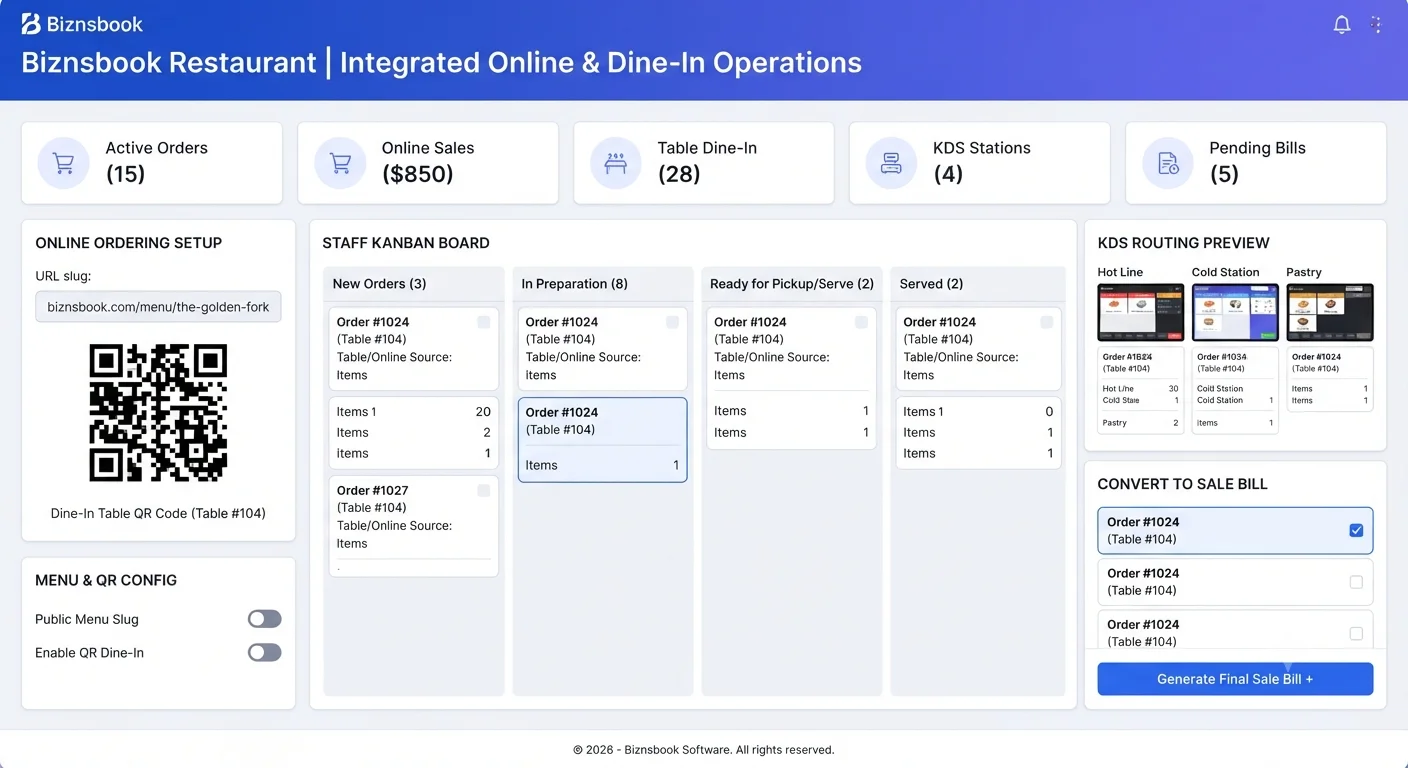
- Enable online ordering in settings. Switch on ordering, set a short unique public slug checked for uniqueness as you type, and configure brand color and welcome message.
- Publish modifier-ready menu items. Assign modifier groups to items on the public menu so the guest modal enforces required choices with live price preview.
- Configure checkout rules. Set name requirement, optional phone, notes, minimum order amount, and paused messaging when ordering is temporarily closed.
- Print table QR codes. Generate a QR per table or a printable sheet; scans open the menu locked to that table for dine-in and hide takeaway.
- Operate the staff Kanban board. Advance orders Received → Confirmed → Preparing → Ready with one tap; new orders trigger in-app alerts and auto-create KDS tickets.
- Let guests track status live. Guests see order reference and a tracker refreshing every 15 seconds after submit without logging in.
- Convert to sale bill at payment. Use one click to turn the online order into a sale bill linked back to the order so payment and reporting stay in the ERP ledger.
Review results after the first full weekly cycle. Adjust roles, mappings, or approvals where the same exception repeats.
Screen-level flows live in the Help Center. This guide focuses on the business process; help articles cover click-by-click navigation.
Common mistakes to avoid
- Mistake 1: Online ordering is paused or slug is unset so the public menu never goes live. Repeating this each month usually shows up first in COGS variance reports or depletion failure logs.
- Mistake 2: Modifier groups are not assigned to items sold on the public menu. Repeating this each month usually shows up first in COGS variance reports or depletion failure logs.
- Mistake 3: Table QR codes are not printed, so dine-in guests use generic takeaway flow. Repeating this each month usually shows up first in COGS variance reports or depletion failure logs.
- Mistake 4: Staff do not advance Kanban statuses or convert orders to sale bills at payment. Repeating this each month usually shows up first in COGS variance reports or depletion failure logs.
Track recurring exceptions in month-end notes; each should map to a control above.
Best practices that hold up as you scale
- Enable online ordering in settings — Switch on ordering, set a short unique public slug checked for uniqueness as you type, and configure brand color and welcome message.
- Publish modifier-ready menu items — Assign modifier groups to items on the public menu so the guest modal enforces required choices with live price preview.
- Configure checkout rules — Set name requirement, optional phone, notes, minimum order amount, and paused messaging when ordering is temporarily closed.
- Print table QR codes — Generate a QR per table or a printable sheet; scans open the menu locked to that table for dine-in and hide takeaway.
- Operate the staff Kanban board — Advance orders Received → Confirmed → Preparing → Ready with one tap; new orders trigger in-app alerts and auto-create KDS tickets.
Teams that activate recipes before enabling auto-deplete, review COGS variance weekly, and log waste at the point of discard avoid the month-end surprises that inflate food cost.
How Biznsbook supports this workflow
Public menu link is documented in Biznsbook Restaurant capabilities. Use it as part of a controlled finance process — posting, review, and period close — not as an isolated export. When Sales, Purchase, Inventory, Taxation, Expense, or Finance Management modules are enabled, related documents can post through the central accounting posting service with double-entry validation.
QR-table ordering is documented in Biznsbook Restaurant capabilities. Use it as part of a controlled finance process — posting, review, and period close — not as an isolated export. When Sales, Purchase, Inventory, Taxation, Expense, or Finance Management modules are enabled, related documents can post through the central accounting posting service with double-entry validation.
staff Kanban board is documented in Biznsbook Restaurant capabilities. Use it as part of a controlled finance process — posting, review, and period close — not as an isolated export. When Sales, Purchase, Inventory, Taxation, Expense, or Finance Management modules are enabled, related documents can post through the central accounting posting service with double-entry validation.
Restaurant permissions separate recipe management, waste logging, par levels, floor plans, KDS, reservations, and settings. Inventory and POS are prerequisites for depletion and costing.
Suggested implementation timeline
- Week 1: Document current process gaps and configure Public menu link with finance owner sign-off.
- Weeks 2–3: Pilot on one month or one entity; post all test transactions through Biznsbook; freeze parallel spreadsheet journals.
- Week 4: Run first trial balance or report tie-out; fix mapping and permission issues.
- Month 2–3: Roll out to full team; add approvals and period close cadence from this guide.
- Ongoing: Monthly review using launch day checklist and leadership dashboard.
Metrics to track monthly
- Food cost % vs target (theoretical ÷ POS sales)
- COGS variance % by ingredient (red / amber / green)
- Failed or stuck sale depletions
- Today waste cost vs daily threshold
- Par level shortages and unread supplier price alerts
Start with three metrics; trend direction matters more than a single point-in-time snapshot.
Spreadsheet / manual books vs integrated ERP
Compare typical manual finance work with Biznsbook Public menu link and related capabilities.
| Capability | Manual / Spreadsheet | Biznsbook |
|---|---|---|
| Menu address | ❌ Phone or social DM | ✅ Unique public slug URL |
| Modifier parity | ❌ Simplified web menu | ✅ Same groups and rules as POS |
| Dine-in routing | ❌ Manual table notes | ✅ QR locks order to table |
| Kitchen handoff | ❌ Re-key at till | ✅ Auto KDS ticket on submit |
| Staff workflow | ❌ Paper stack | ✅ Kanban board with alerts |
| Settlement | ❌ Separate cash entry | ✅ Convert to sale bill |
Launch day checklist
Test one dine-in QR order and one takeaway order end to end: modifier enforcement, Kanban advance, KDS ticket, guest status tracker, and convert-to-sale-bill. Fix paused-state messaging before promoting the link.
Document this in your finance SOP and revisit each quarter as transaction volume or entity structure changes.
Frequently asked questions
Do guests need an account to order?
No. The public menu is anonymous, rate-limited per device, and CSRF-protected with no login required.
How do table QR orders differ from takeaway?
Scanning a table QR locks the order to that table for dine-in and hides the takeaway option on checkout.
Do online orders reach the kitchen?
Yes. Every order creates a KDS ticket tagged Online or QR-table with customer notes attached.
Where can I see channel performance?
Online ordering analytics shows orders, revenue, average order value, busiest hours, and completed vs cancelled counts.
How this differs by industry
Retail
Fast-casual brands add QR ordering per table so guests reorder during dine-in without flagging staff, while kitchen tickets stay station-routed.
Wholesale & distribution
Commissary pickup counters can publish a takeaway-only slug with minimum order rules for B2B meal bundles collected on schedule.
Manufacturing
Franchisees deploy the same slug pattern and modifier assignments so guest web builds match corporate POS standards at every site.